
Your First Document
This guide walks you through creating your first document in Bokuchi — from opening the app to saving your file.
What is Markdown?
Section titled “What is Markdown?”Markdown is a simple way to format text using special characters. For example, writing # Hello creates a large heading, and **bold** makes text bold.
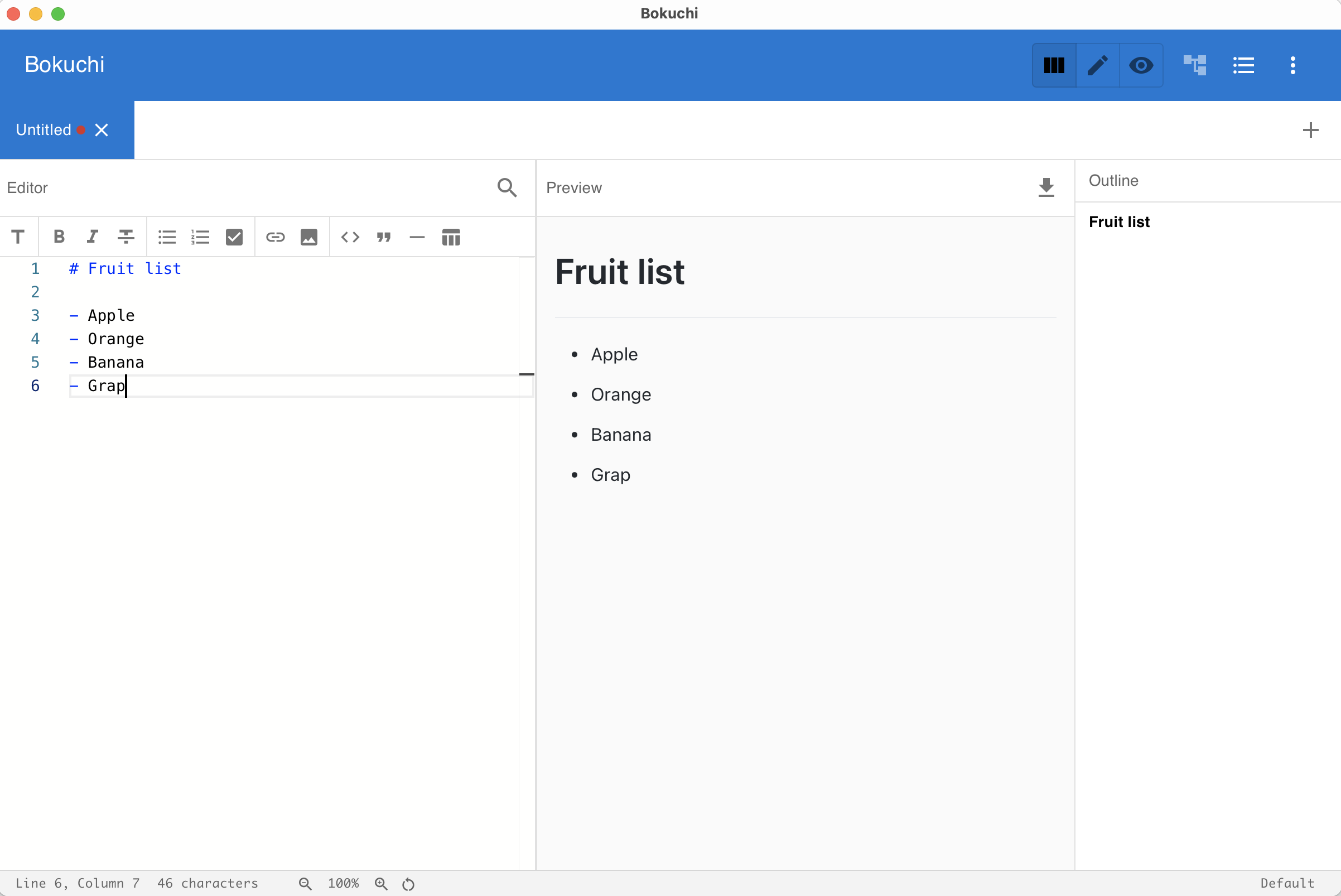
In Bokuchi, you type Markdown on the left side (the editor), and the formatted result appears on the right side (the preview) — in real time.
Creating Your First Document
Section titled “Creating Your First Document”-
Launch Bokuchi
Open Bokuchi from your Applications folder (macOS), Start menu (Windows), or application launcher (Linux). A new empty document is ready for you.
-
Type some text
Click on the left panel (the editor) and type something:
# My First DocumentHello! This is my first document in Bokuchi.- Item one- Item two- **Bold item**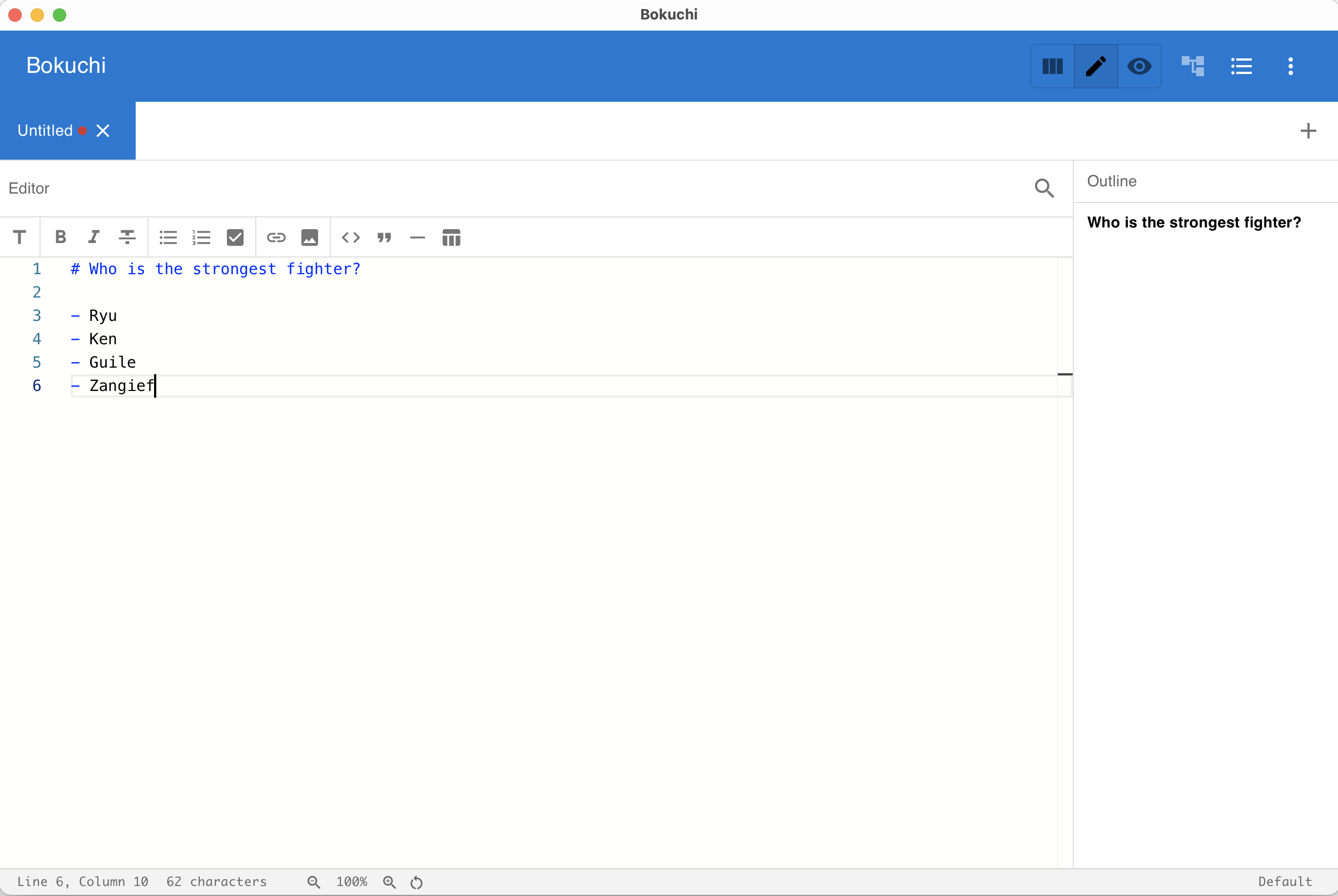
-
Check the preview
Look at the right panel. Your text appears formatted — the heading is large, the list has bullet points, and the bold text stands out.
-
Save your document
Press Cmd+S (macOS) or Ctrl+S (Windows/Linux). A save dialog appears. Choose a location, give your file a name (e.g.,
my-first-doc.md), and click Save.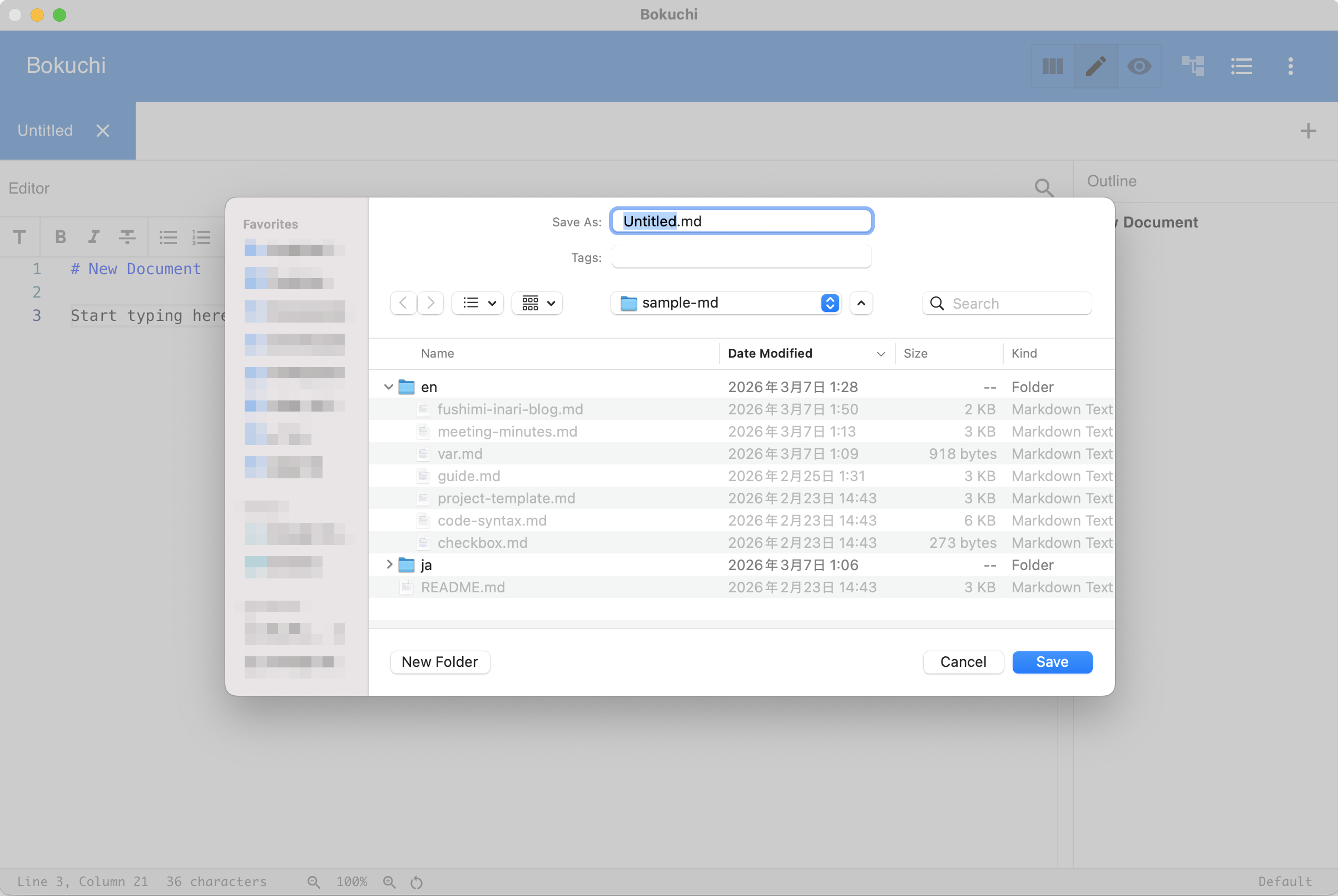
What Happened?
Section titled “What Happened?”- You wrote text with Markdown formatting in the editor (left panel)
- Bokuchi showed you the formatted result in the preview (right panel) — instantly
- You saved the file as a
.md(Markdown) file on your computer
That’s the basic flow. Everything you write is stored locally on your machine — nothing is uploaded anywhere.
Next Steps
Section titled “Next Steps”- Learn the interface — Understand each part of the Bokuchi window
- Markdown basics — Learn all the formatting you can use
- File operations — Open, save, and manage your files