
Folder Tree
The folder tree panel lets you browse a directory and open files directly from Bokuchi, similar to a file explorer.
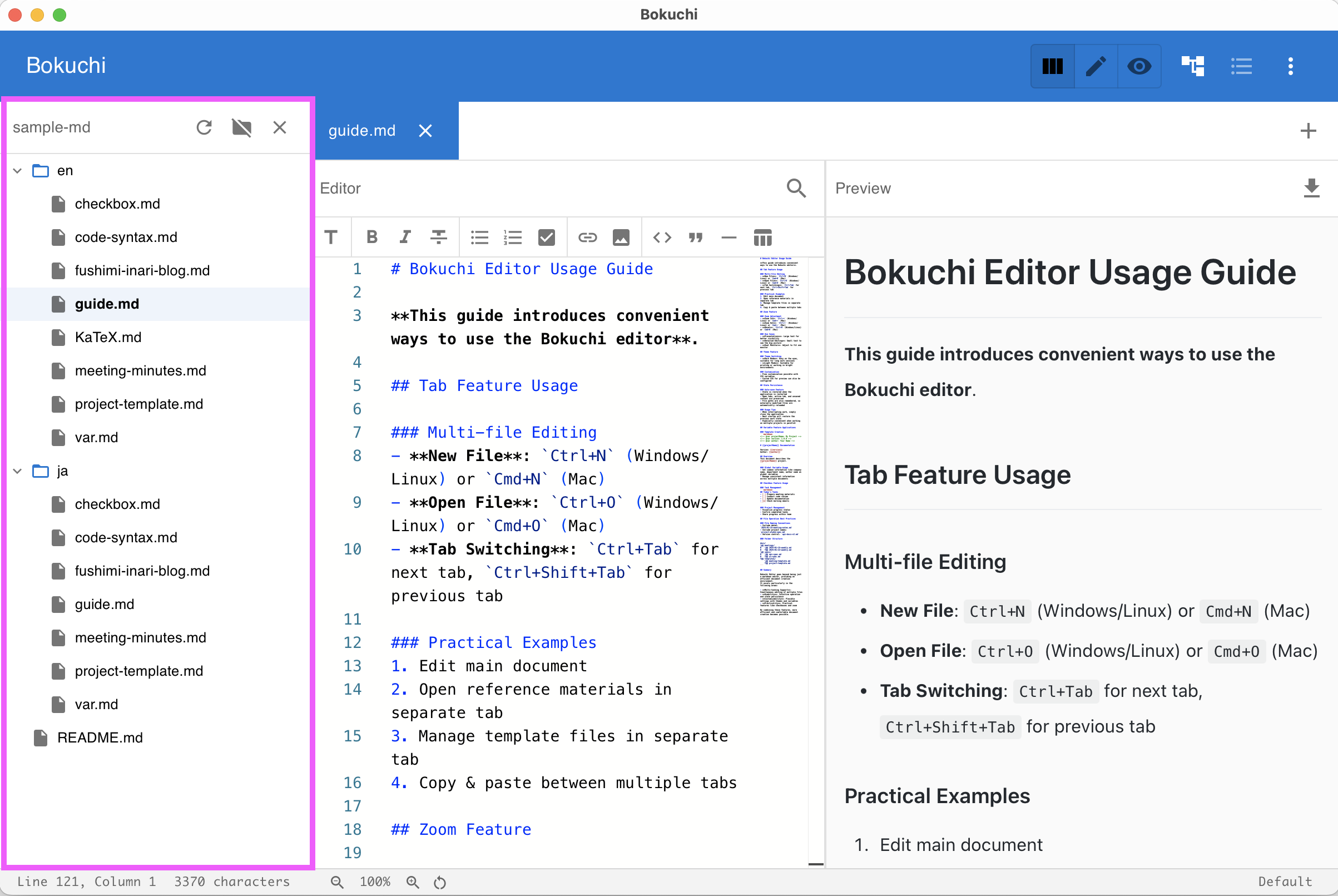
Opening the Folder Tree
Section titled “Opening the Folder Tree”Press Ctrl+Shift+E to toggle the folder tree panel.
To set the folder to browse, use the menu or the button in the panel to select a directory.
Features
Section titled “Features”- File browsing — Navigate your folder structure in a tree view
- Click to open — Click a file to open it in a new tab
- Lazy loading — Subdirectories load their contents on demand for performance
- Active file highlight — The currently open file is highlighted in the tree
- File filter — Show only Markdown files or all files
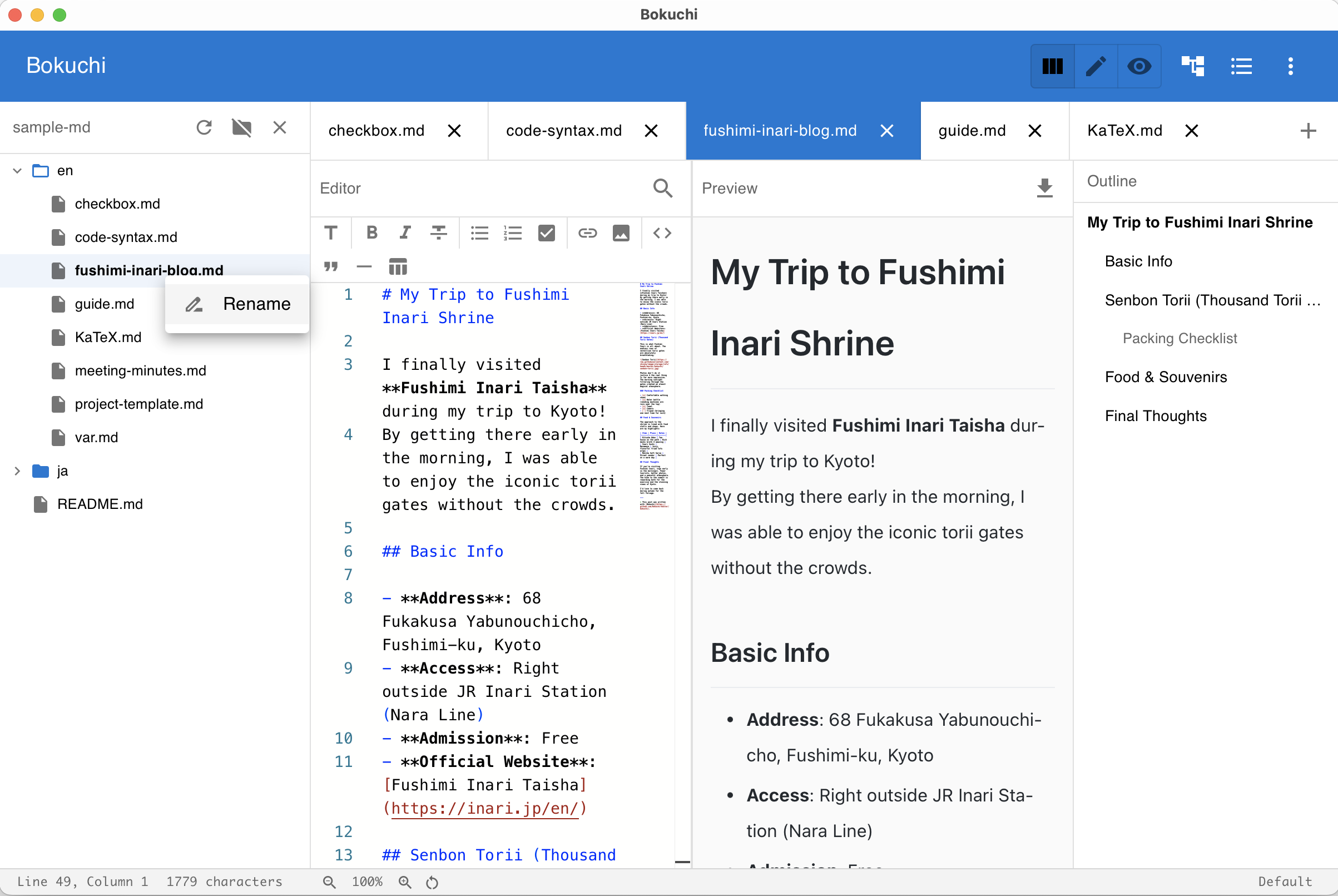
- Rename — Right-click a file to rename it from the context menu
- Reveal in file manager — Right-click a file to open it in Finder / File Explorer
Renaming Files
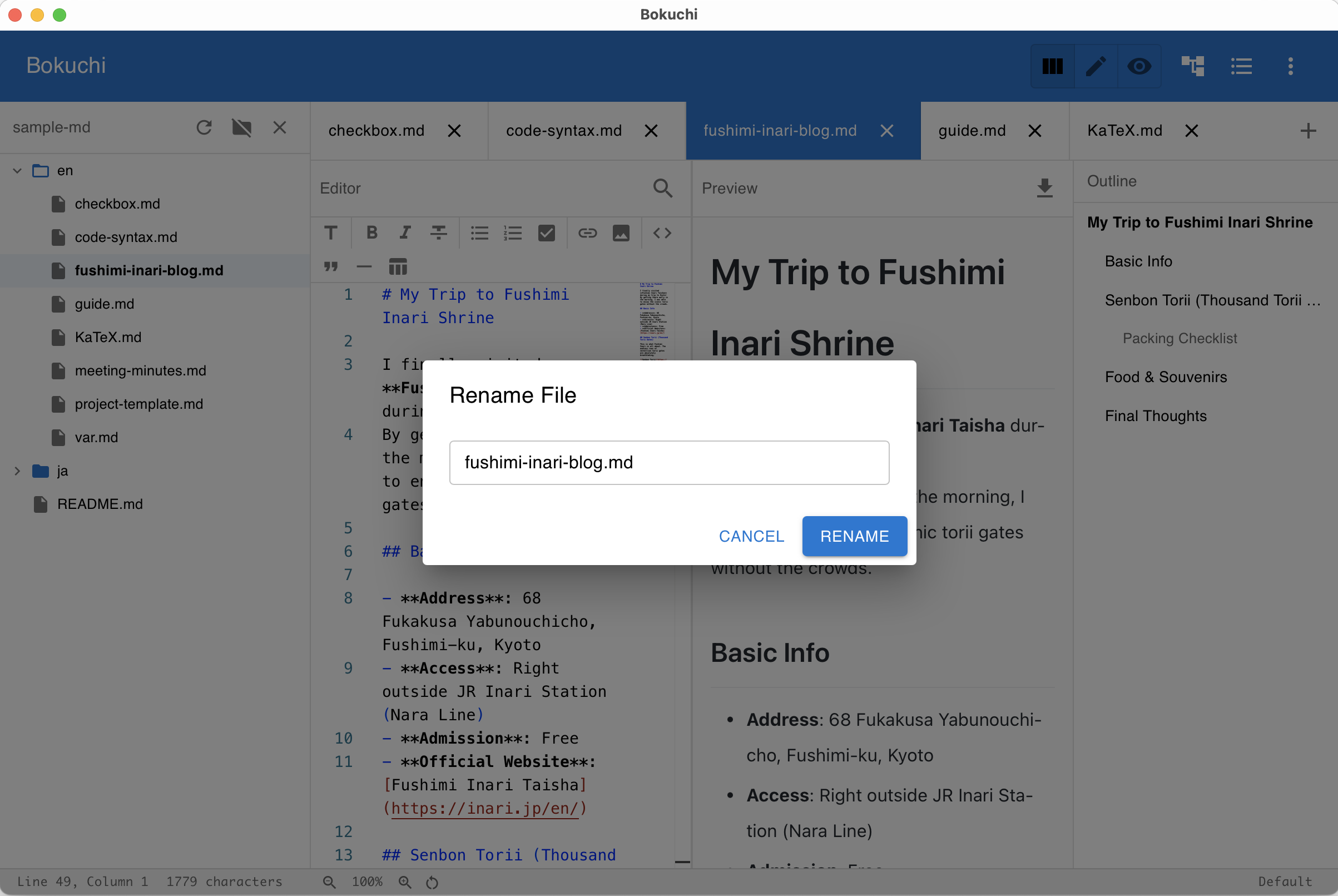
Section titled “Renaming Files”Right-click a file in the tree to open the context menu, then select Rename.
A dialog appears where you can enter the new file name.
Revealing a File in the File Manager
Section titled “Revealing a File in the File Manager”The same context menu has a Reveal in Finder (macOS), Reveal in File Explorer (Windows), or Open Containing Folder (Linux) item. It opens the OS file manager with that file selected, so you can move, copy, or share the file without leaving Bokuchi. The same option is available from a tab’s context menu.
Display Modes
Section titled “Display Modes”| Mode | Description |
|---|---|
| Persistent | Always visible as a side panel |
| Overlay | Appears on top of the content when toggled |
| Off | Panel is hidden |
Change the display mode in Settings > Interface > Explorer Display Mode.
Merged Sidebar
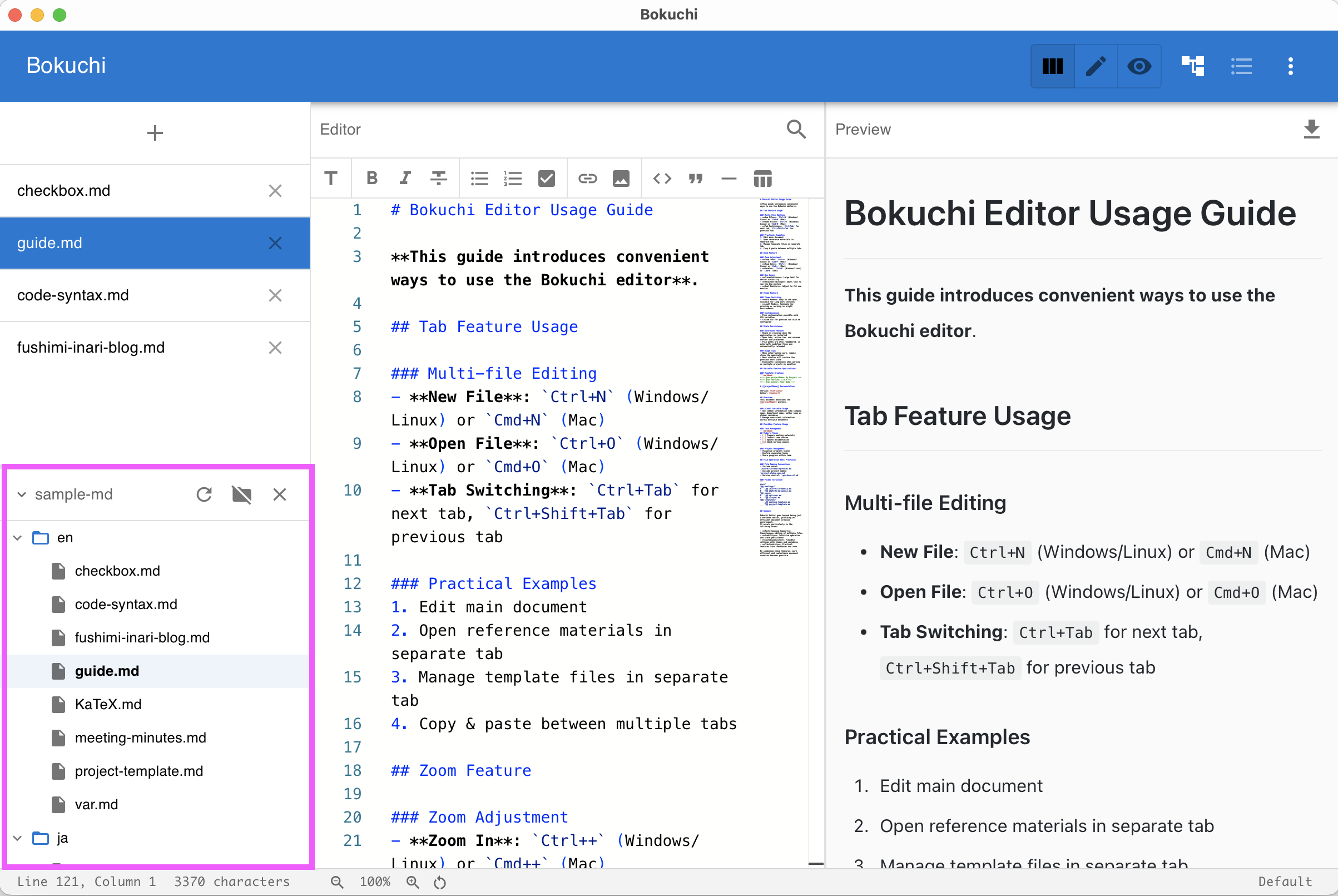
Section titled “Merged Sidebar”When using vertical tabs, the folder tree can be combined with the tab list in a single resizable sidebar for a more compact layout.
Next Steps
Section titled “Next Steps”- Tabs — Manage open files with tabs
- Outline panel — Navigate headings within a document