
Table Editing
Markdown tables are powerful, but lining up pipes (|) by hand is tedious. Bokuchi lets you edit tables visually — add and remove rows or columns, set alignment, and edit cells — without touching the raw syntax. Bokuchi writes clean, normalized Markdown back into your document for you.
Three Ways to Edit a Table
Section titled “Three Ways to Edit a Table”1. The Format Table button (editor)
Section titled “1. The Format Table button (editor)”Place your cursor anywhere inside a table in the editor, then:
- Click Format Table (the grid icon) on the Markdown toolbar, or
- Press Cmd+Shift+L (macOS) / Ctrl+Shift+L (Windows / Linux)
This tidies up the table’s Markdown — aligning the columns and normalizing the separators — and opens the visual table editor.
2. The table editor
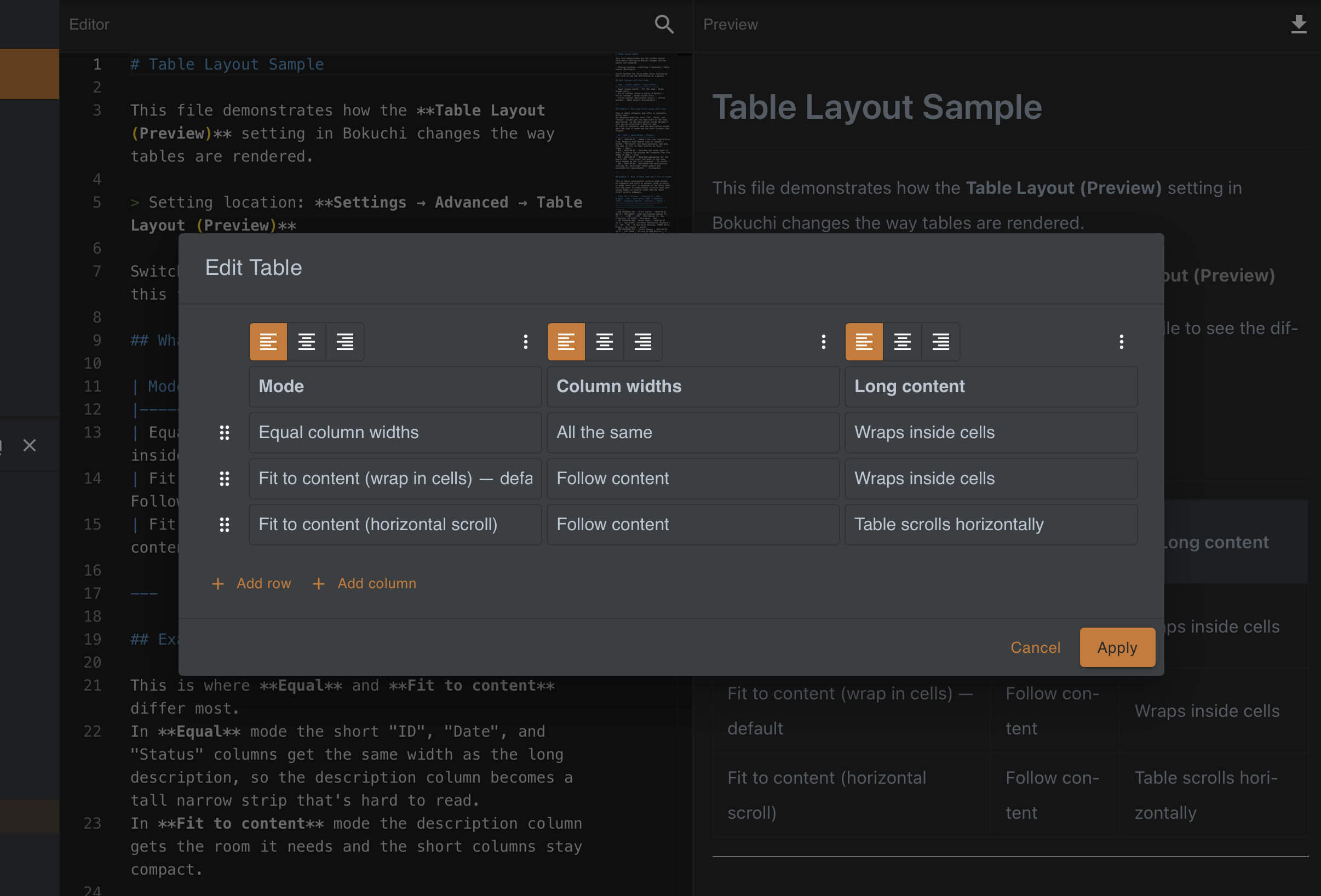
Section titled “2. The table editor”The table editor shows your table as a grid you can edit directly:
| Control | What it does |
|---|---|
| Cell fields | Click a cell to edit its text. Fields are multi-line, so long content is easy to read and edit |
| Add row / Add column | Append a new row or column to the table |
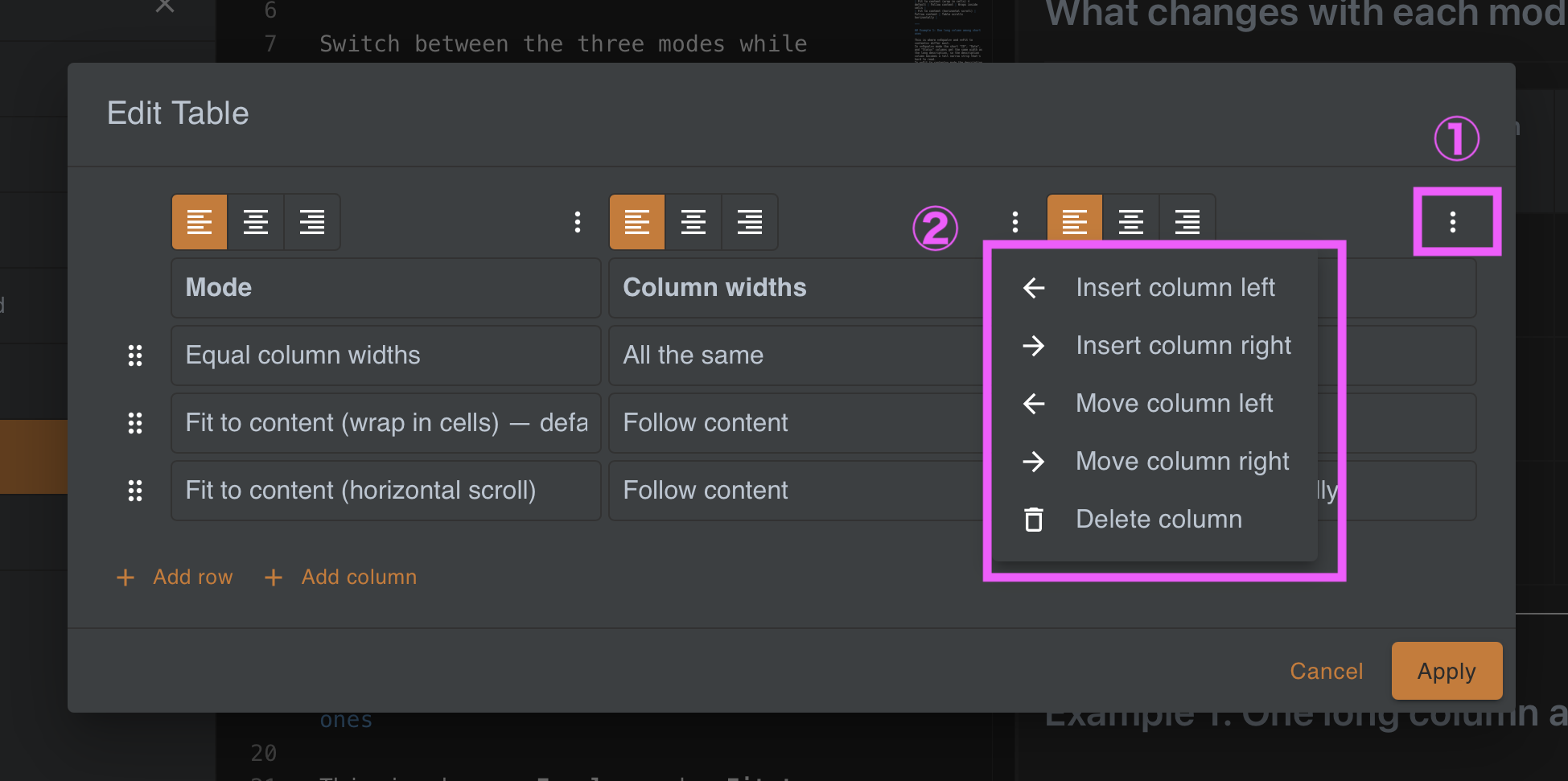
| Row actions menu | Insert row above/below, move row up/down, delete row |
| Column actions menu | Insert column left/right, move column left/right, delete column |
| Alignment buttons | Set each column to Align left, Align center, or Align right |
When you’re done, click Apply to write the changes back to your document, or Cancel to discard them.
3. Edit directly in the preview
Section titled “3. Edit directly in the preview”You can also edit a table right where you see it rendered:
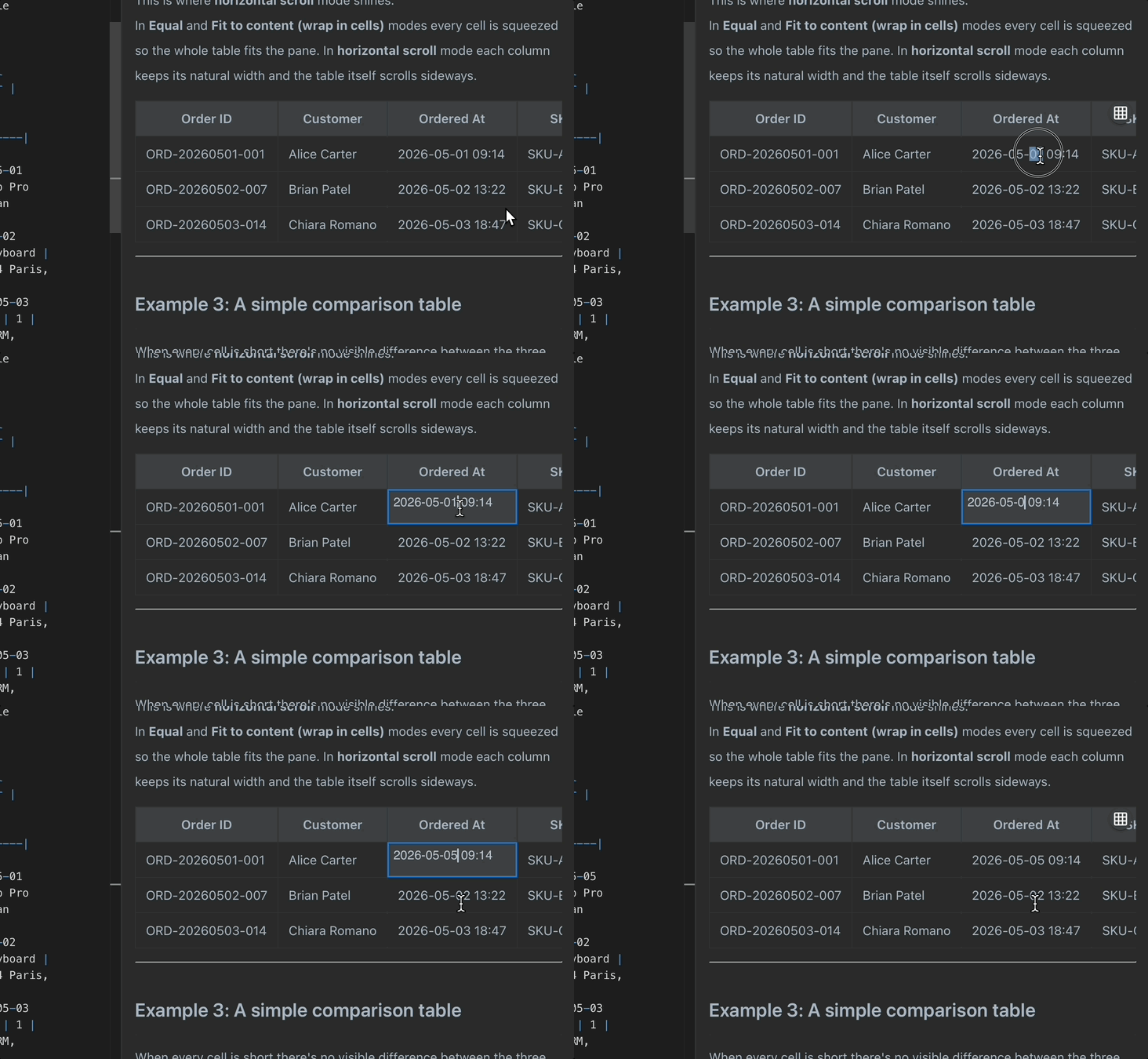
- Hover over a table in the preview to reveal an Edit table button in its top-right corner. Click it to open the table editor.
- Double-click any cell to edit it in place. Press Tab to move to the next cell, Enter to move to the cell below, and Esc to finish. The preview updates as you go.
Editing Tables as Text
Section titled “Editing Tables as Text”If you prefer to type, Bokuchi still helps while you edit a table directly in the editor:
- Tab / Shift+Tab — move to the next / previous cell
- Enter — move to the cell below; on the last row, a new row is added automatically
- Pressing Enter on an empty row exits the table and leaves a blank line
Next Steps
Section titled “Next Steps”- Markdown Toolbar — Where the Format Table button lives
- Table Conversion — Paste spreadsheet or HTML data as a table
- Markdown Basics — Tables — The underlying table syntax