
Editor & Preview
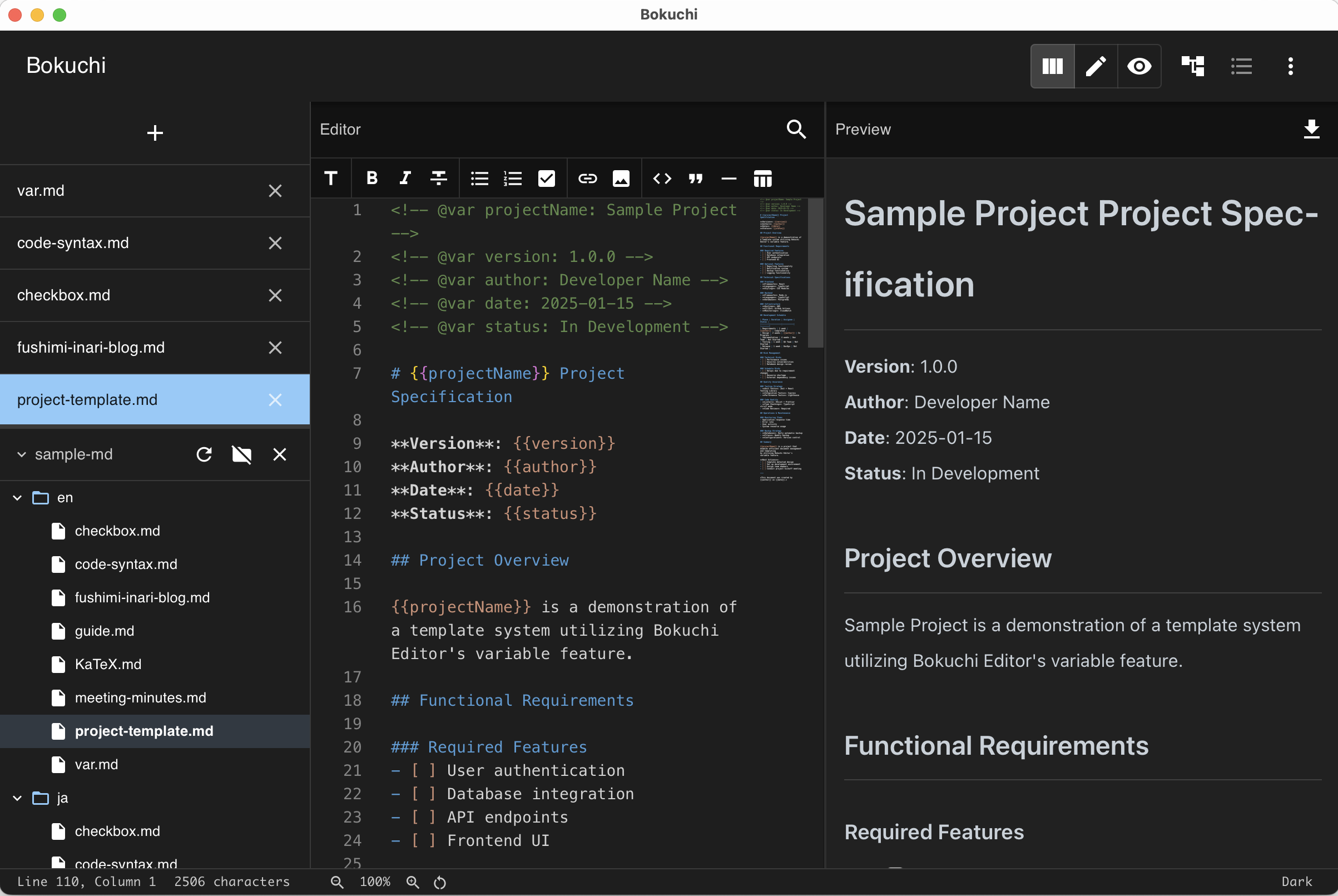
Bokuchi provides a side-by-side editing experience where you write Markdown on the left and see the rendered result on the right.
View Modes
Section titled “View Modes”| Mode | Description | Shortcut |
|---|---|---|
| Split View | Editor + Preview side by side | Ctrl+Shift+1 |
| Editor Only | Full-width editor | Ctrl+Shift+2 |
| Preview Only | Full-width preview | Ctrl+Shift+3 |
Press Cmd+Shift+D (macOS) / Ctrl+Shift+D (Windows / Linux) to cycle through the three modes.
Bokuchi remembers your current view mode and reopens in it the next time you launch the app, so you don’t have to switch back to your preferred layout each time. (The very first launch starts in split view.)
Synchronized Scrolling
Section titled “Synchronized Scrolling”In split view, the editor and preview scroll together. You can choose the scroll sync behavior in Settings > Interface > Scroll Sync:
| Mode | Description |
|---|---|
| Bidirectional (default) | Scrolling either pane scrolls the other. |
| Editor to Preview | Scrolling the editor scrolls the preview. Scrolling the preview does not move the editor. |
| Off | Each pane scrolls independently. |
Preview Features
Section titled “Preview Features”Interactive Checkboxes
Section titled “Interactive Checkboxes”Checkboxes in the preview are clickable. When you click a checkbox, the corresponding - [ ] or - [x] in the editor is updated automatically.
Links in the preview are clickable. External links open in your system’s default browser.
Code Blocks
Section titled “Code Blocks”Code blocks in the preview have syntax highlighting for over 190 programming languages. The language is detected from the label after the opening triple backticks.
Hover over a code block and a copy button appears in its top-right corner. Click it to copy the whole snippet to the clipboard — a check mark briefly confirms the copy. The button lives only in the preview; it never appears in exported HTML or PDF files.
Math Expressions (KaTeX)
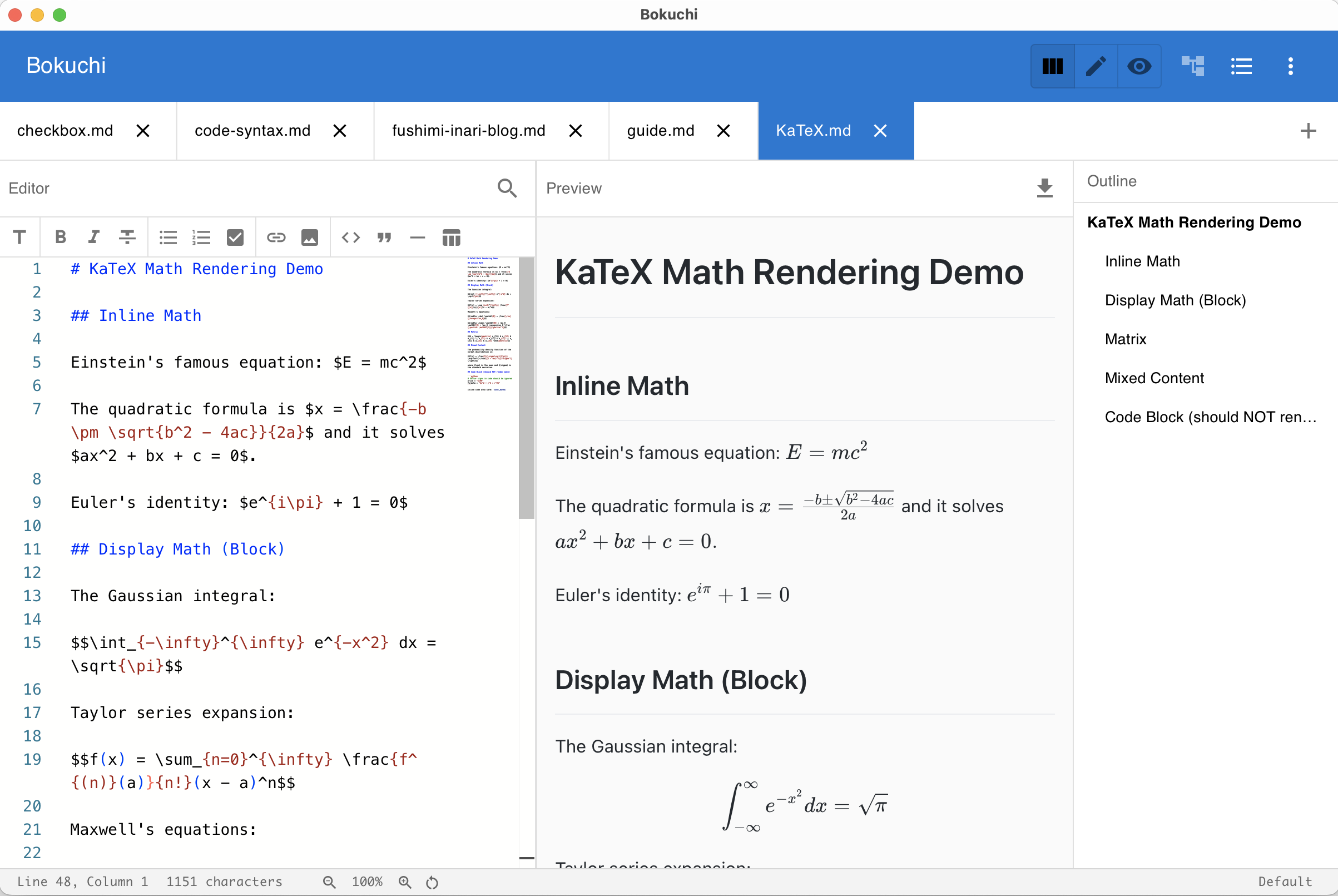
Section titled “Math Expressions (KaTeX)”When enabled in settings, math expressions are rendered in the preview. Use $...$ for inline math and $$...$$ for display math.
Diagrams (Mermaid)
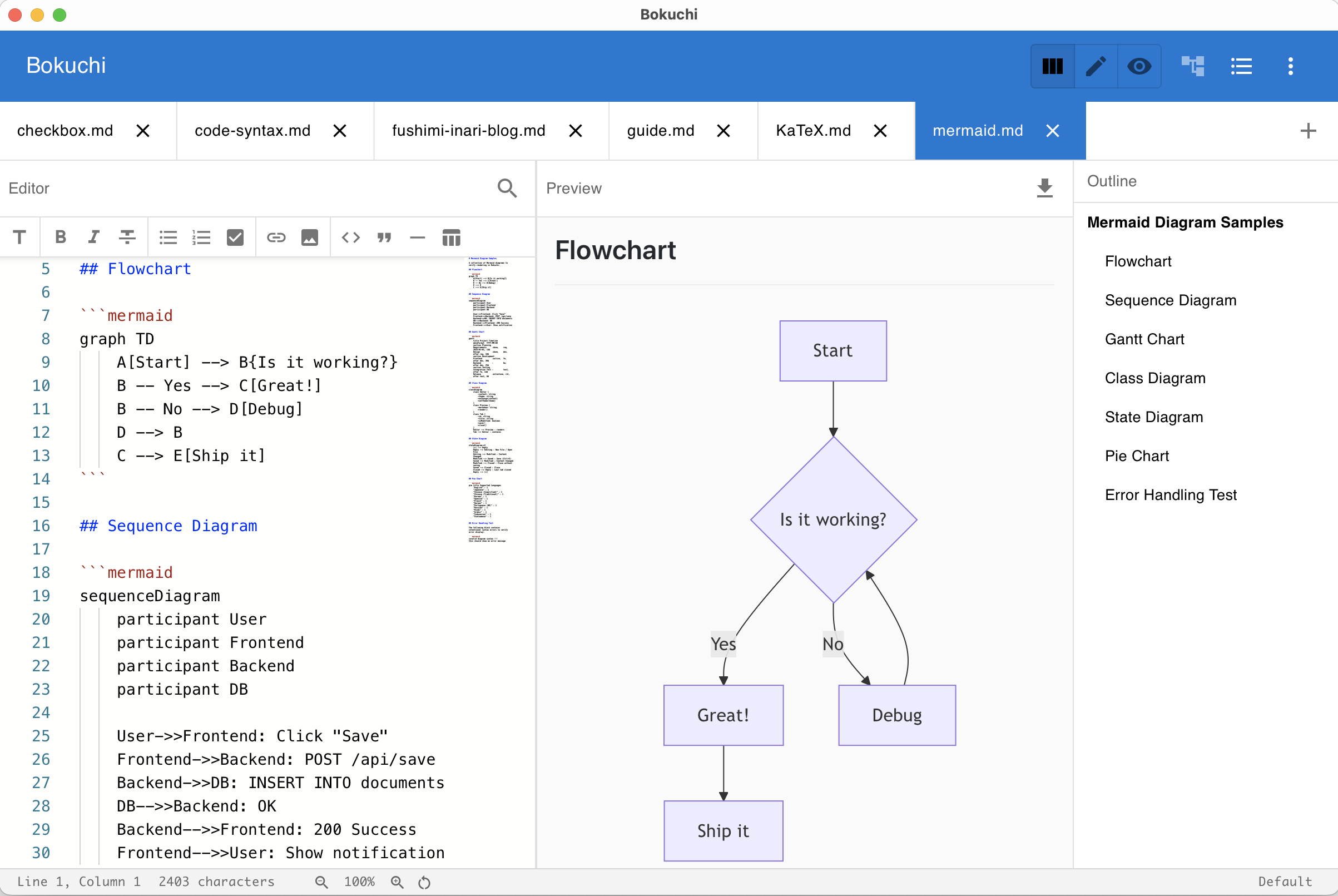
Section titled “Diagrams (Mermaid)”When enabled in settings, ```mermaid fenced code blocks are rendered as diagrams (flowcharts, sequence diagrams, etc.) in the preview. Mermaid rendering adapts to your current theme.
Presentations (Marp)
Section titled “Presentations (Marp)”When enabled in settings, Markdown files with a marp: true front-matter are rendered as slide presentations in the preview. In split view, slides scroll in sync with the editor. In preview-only mode, slides are shown one at a time with navigation controls.
See Marp Presentations for details.
Editor Features
Section titled “Editor Features”The editor is powered by Monaco Editor (the same editor used in VS Code) and supports:
- Syntax highlighting for Markdown
- Line numbers — toggle on/off in settings
- Word wrap — toggle on/off in settings
- Minimap — a small overview of your document, toggle on/off
- Whitespace display — show invisible characters
Continuous List Input
Section titled “Continuous List Input”When you press Enter inside a list item, the next line automatically starts with the same marker — so you can keep typing without retyping - or 1. each time:
- Bullet lists (
-,*,+) continue with the same bullet - Numbered lists (
1.,2.…) continue with the next number - Checkboxes (
- [ ]) continue with a fresh unchecked box
Press Enter on an empty list item to end the list — the marker is removed and you get a blank line.
You can also press Tab on a list item to indent it one level deeper, and Shift+Tab to outdent it.
Inserting Images by Drag & Drop or Paste
Section titled “Inserting Images by Drag & Drop or Paste”Drop an image file onto the editor to insert a Markdown image link at that spot. While you drag, a “Drop image here” overlay shows where the image will land. You can drop several images at once.
Bokuchi keeps the links relative to your document, so they keep working when you share the folder:
- An image that is already inside your document’s folder is linked as-is with a relative path
- An image from somewhere else is copied into an
imagesfolder next to your document
You can also paste an image — for example a screenshot — directly into the editor. It is saved into the images folder with a timestamped name, and the link is inserted at the cursor.
Next Steps
Section titled “Next Steps”- Markdown toolbar — Format text using buttons
- Focus Mode — Hide the surrounding UI and focus on writing
- Search and replace — Find and replace text
- Zoom — Adjust the interface size