
Export
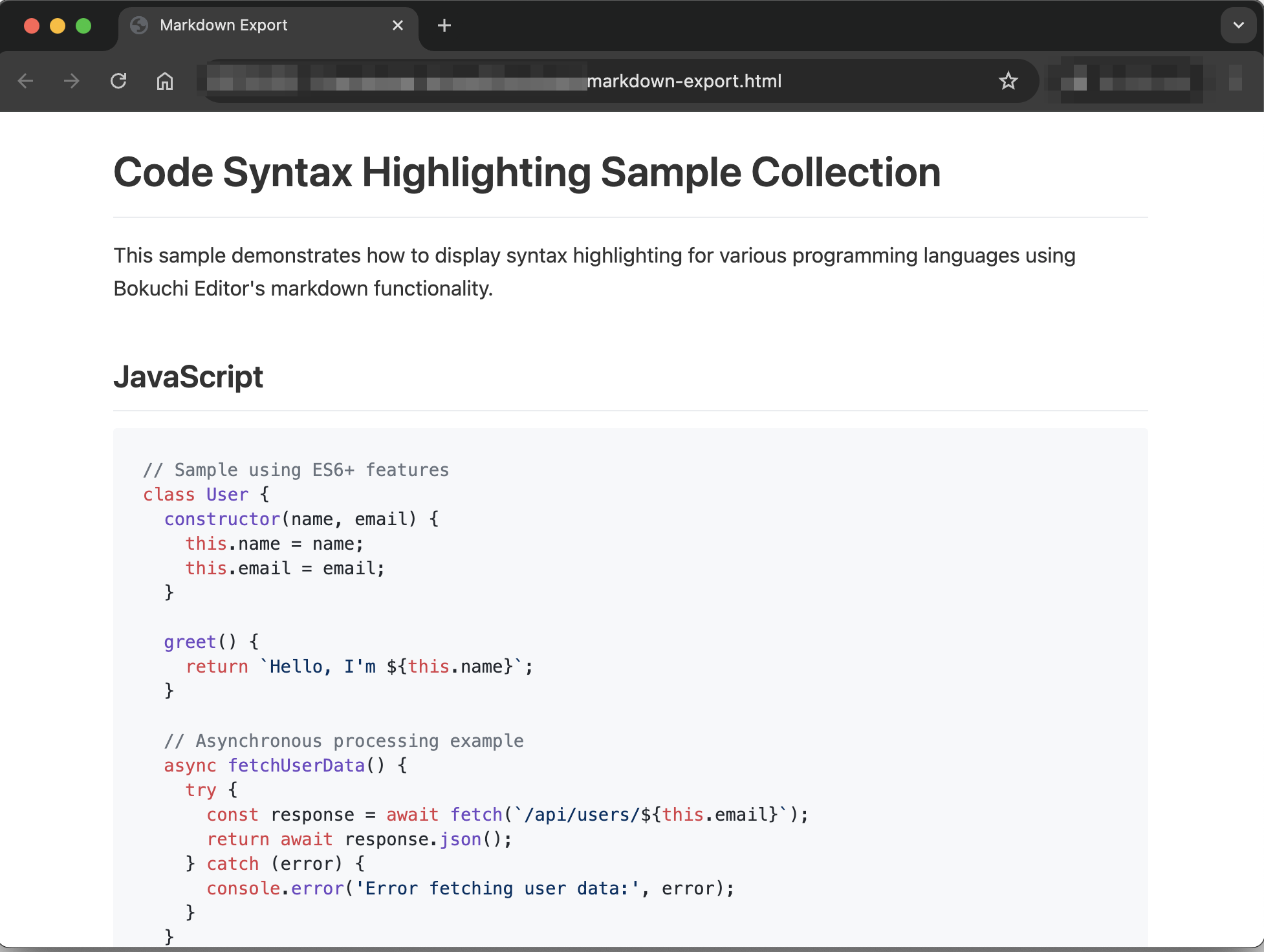
Bokuchi can export your Markdown document as a styled HTML file that you can open in any web browser, or as a PDF that anyone can view and print.
HTML Export
Section titled “HTML Export”The exported HTML file includes:
- Full styling — The rendered Markdown looks the same as in Bokuchi’s preview
- Syntax highlighting — Code blocks retain their color highlighting
- Image references — Images are kept as relative paths. Place image files in the same folder structure alongside the exported HTML
- Expanded variables — All variables are replaced with their actual values
- Math and diagrams — KaTeX math expressions and Mermaid diagrams are rendered in the exported file
- Alerts and emoji — GitHub-style alerts keep their icons and colors, and emoji shortcodes are converted
- Your preview font — If you’ve chosen a preview font in Settings, the exported file uses it too. Code blocks always keep a monospace font
How to Export
Section titled “How to Export”- Open the file you want to export
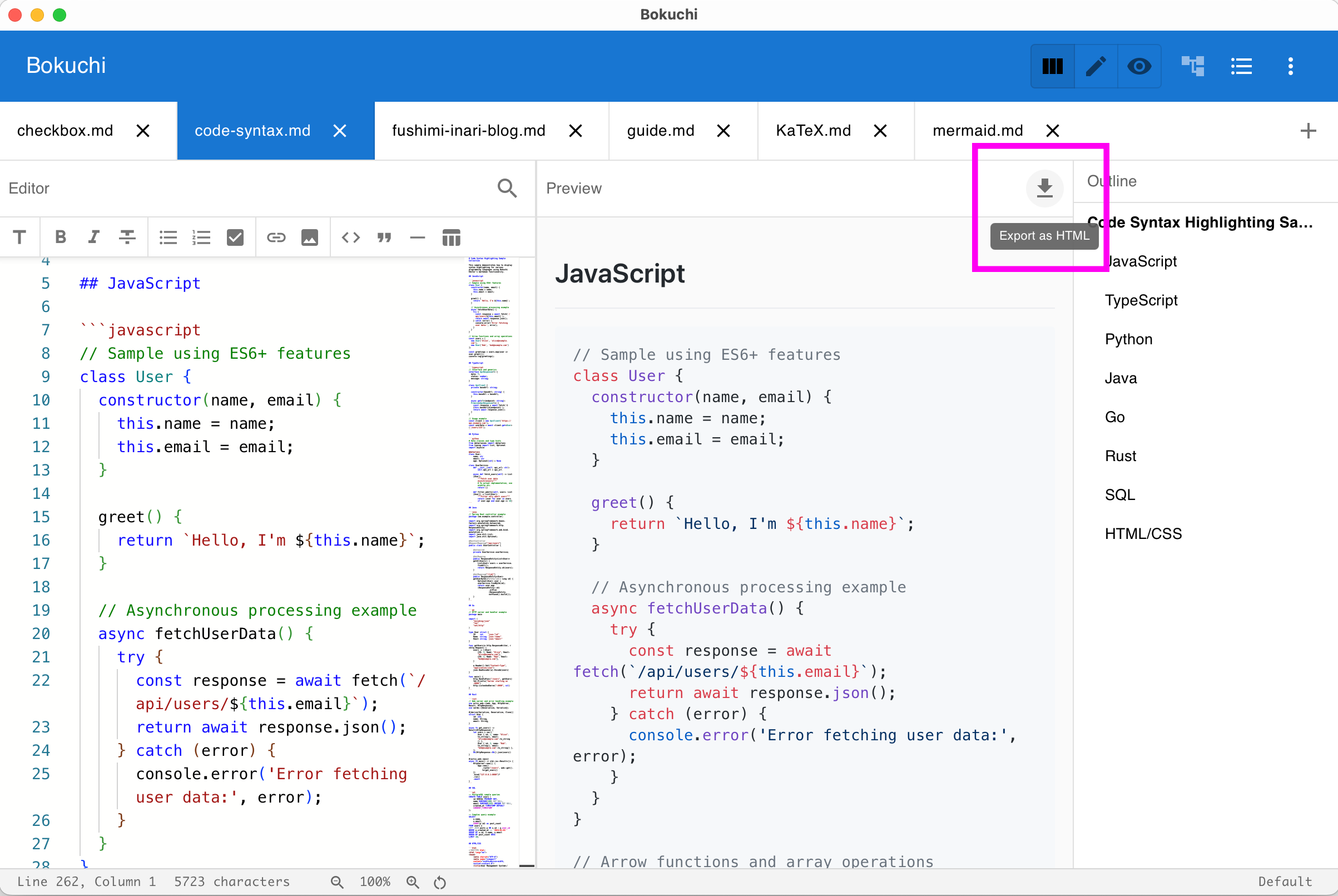
- Click the download button in the top-right corner of the preview panel
- Choose Export as HTML or Export as PDF from the menu
- Choose the save location and file name
The save dialog suggests a file name based on your document’s name — for example, notes.md becomes notes.html or notes.pdf. Unsaved documents use markdown-export as the default name. You can always type a different name before saving.
PDF Export
Section titled “PDF Export”Choosing Export as PDF saves your document as an A4 PDF — handy for printing or sharing with people who don’t use Bokuchi.
The PDF includes the same content as the HTML export: syntax-highlighted code blocks, expanded variables, KaTeX math, Mermaid diagrams, alerts, emoji, and your chosen preview font.
While the file is being produced, a Generating PDF… message appears at the bottom of the window. Large documents with many images can take a few seconds. When it finishes, a PDF exported confirmation appears — or an error message if something went wrong.
Marp presentations have their own PDF export that saves one slide per page — see Marp Presentations.
Other Export Options
Section titled “Other Export Options”Settings Export / Import
Section titled “Settings Export / Import”Export your Bokuchi settings as a JSON file, or import settings from a file. Useful for syncing your configuration across machines.
Variable Export / Import
Section titled “Variable Export / Import”Export global variables as a YAML file, or import variables from a YAML file. Useful for sharing variable sets with your team.