
Markdown Basics
Markdown is a simple way to format text using special characters. This page covers all the basics you need to know.
Headings
Section titled “Headings”Headings create section titles. Use # symbols at the beginning of a line.
| Markdown | Result |
|---|---|
# Heading 1 | Largest heading |
## Heading 2 | Second-level heading |
### Heading 3 | Third-level heading |
#### Heading 4 | Fourth-level heading |
##### Heading 5 | Fifth-level heading |
###### Heading 6 | Smallest heading |
When to use: Use headings to organize your document into sections. The outline panel will display your heading structure for easy navigation.
Bold, Italic, and Strikethrough
Section titled “Bold, Italic, and Strikethrough”| Markdown | Result | Use case |
|---|---|---|
**bold text** | bold text | Emphasize important words |
*italic text* | italic text | Titles, terms, subtle emphasis |
~~strikethrough~~ | Show deleted or outdated text | |
***bold and italic*** | bold and italic | Strong emphasis |
Bullet Lists
Section titled “Bullet Lists”Use -, *, or + at the beginning of each line:
- First item- Second item - Nested item - Another nested item- Third itemNumbered Lists
Section titled “Numbered Lists”Use numbers followed by a period:
1. First step2. Second step3. Third stepCheckboxes (Task Lists)
Section titled “Checkboxes (Task Lists)”Use - [ ] for unchecked and - [x] for checked items:
- [x] Completed task- [ ] Pending task- [ ] Another taskLinks and Images
Section titled “Links and Images”[Link text](https://example.com)Images
Section titled “Images”You can use relative paths for local images or URLs for online images.
Blockquotes
Section titled “Blockquotes”Use > at the beginning of a line to create a quote:
> This is a blockquote.> It can span multiple lines.When to use: Highlight important information, quote sources, or add notes.
Alerts (Callouts)
Section titled “Alerts (Callouts)”Start a blockquote with a special marker and it becomes a colored callout box with an icon — the same syntax GitHub uses:
> [!NOTE]> Useful information that readers should know, even when skimming.
> [!TIP]> Helpful advice for doing things better or more easily.
> [!IMPORTANT]> Key information readers need to know to achieve their goal.
> [!WARNING]> Urgent info that needs immediate attention to avoid problems.
> [!CAUTION]> Advises about risks or negative outcomes of certain actions.| Marker | Color | Use case |
|---|---|---|
[!NOTE] | Blue | General information |
[!TIP] | Green | Helpful hints |
[!IMPORTANT] | Purple | Things the reader must not miss |
[!WARNING] | Yellow | Potential problems |
[!CAUTION] | Red | Dangerous or irreversible actions |
A few rules, matching GitHub’s behavior:
- The marker must be on its own line, as the first line of the quote.
> [!NOTE] extra textstays a plain quote - The alert needs at least one line of body text after the marker
- The marker is not case-sensitive —
[!note]works too - Only top-level quotes become alerts. A quote nested inside a list or inside another quote stays plain
Alerts also appear in HTML and PDF exports. The titles (Note, Tip, and so on) are always shown in English, just like on GitHub.
Inline Code
Section titled “Inline Code”Wrap text in backticks for inline code: `code here`
Code Blocks
Section titled “Code Blocks”Use triple backticks for multi-line code. Specify a language for syntax highlighting:
```javascriptfunction hello() { console.log("Hello, world!");}```Bokuchi supports syntax highlighting for over 190 programming languages.
Tables
Section titled “Tables”Use pipes | and dashes - to create tables:
| Name | Role | Status ||---------|----------|---------|| Alice | Designer | Active || Bob | Engineer | Active |Horizontal Rules
Section titled “Horizontal Rules”Create a divider line with three or more dashes:
---Emoji Shortcodes
Section titled “Emoji Shortcodes”Type an emoji name between colons and the preview shows the emoji:
Launch day! :rocket: :tada:Result: Launch day! 🚀 🎉
Bokuchi understands the same shortcodes as GitHub, so any name that works in a GitHub comment works here. Shortcodes are converted in the preview and in HTML and PDF exports; the text in your file stays as you typed it.
- Names are lowercase —
:ROCKET:stays as text - Unknown names are shown as-is
- Shortcodes inside inline code or code blocks are never converted
If you’d rather keep shortcodes as plain text, turn off Emoji Shortcodes in Settings > Advanced > Rendering Extensions.
Math Expressions (KaTeX)
Section titled “Math Expressions (KaTeX)”When KaTeX is enabled in Settings > Advanced > Rendering Extensions, you can render math expressions.
Inline math — wrap with single dollar signs:
The formula $E = mc^2$ is well known.Display math — wrap with double dollar signs:
$$\sum_{i=1}^{n} x_i$$Diagrams (Mermaid)
Section titled “Diagrams (Mermaid)”When Mermaid is enabled in Settings > Advanced > Rendering Extensions, you can create diagrams using ```mermaid fenced code blocks.
```mermaidgraph TD A[Start] --> B{Decision} B -->|Yes| C[Result A] B -->|No| D[Result B]```Mermaid supports flowcharts, sequence diagrams, class diagrams, state diagrams, and more.
Text Effects (Bokuchi Only)
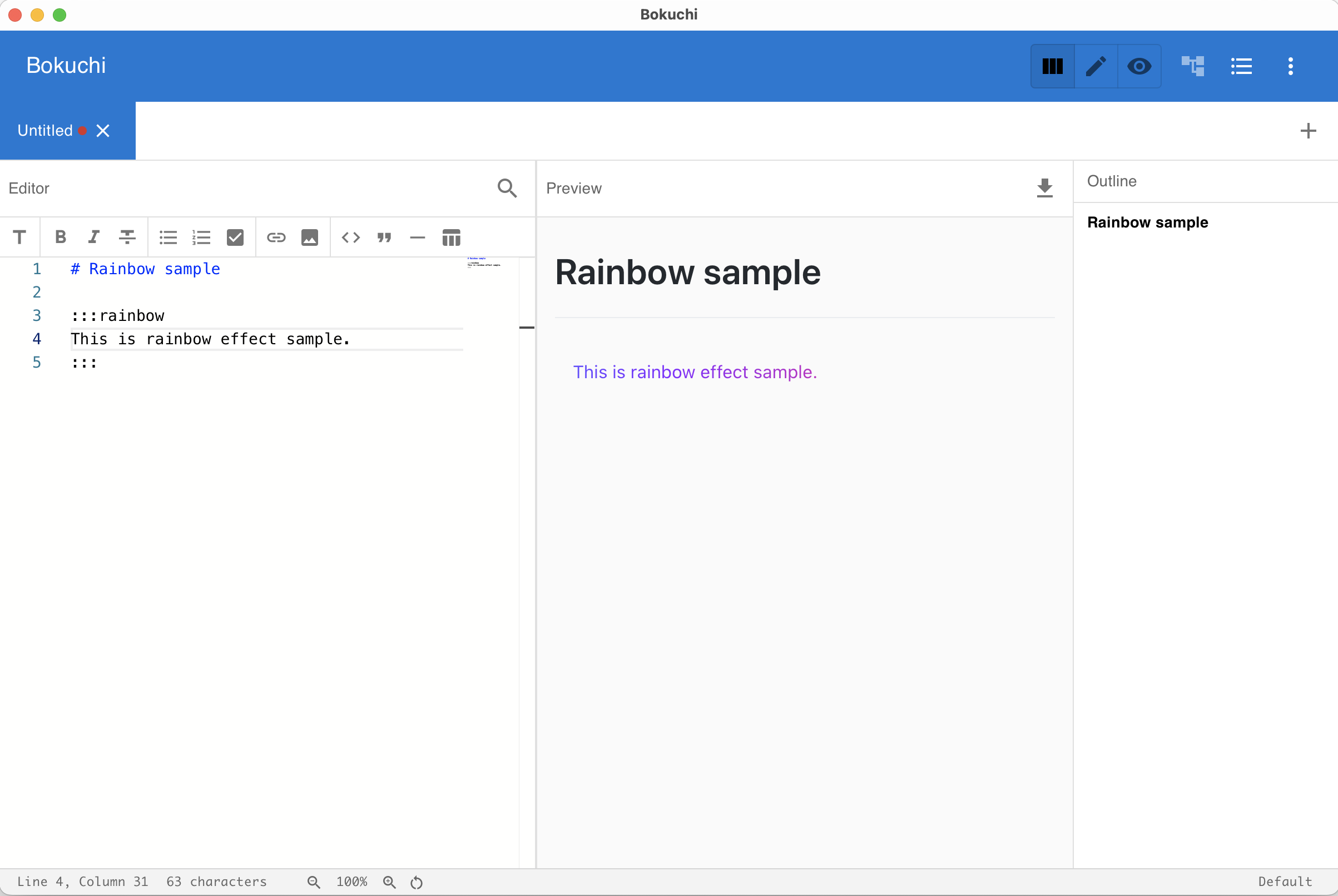
Section titled “Text Effects (Bokuchi Only)”Bokuchi supports special visual effects in the preview. Wrap content between :::effectName and ::: markers:
:::rainbowThis text displays in rainbow colors.:::Available effects:
| Effect | Description |
|---|---|
shake | Text shakes back and forth |
rainbow | Text cycles through rainbow colors |
glow | Text pulses with a glow effect |
bounce | Text bounces up and down |
blink | Text blinks on and off |
Next Steps
Section titled “Next Steps”- Markdown toolbar — Apply formatting using buttons
- Markdown cheatsheet — Quick reference card
- Editor and preview — Learn about the editing experience