
Settings
Open the settings panel with Cmd+, (macOS) or Ctrl+, (Windows/Linux). You can also press F1 and access settings from the help menu.
Settings Categories
Section titled “Settings Categories”Editor
Section titled “Editor”| Setting | Description | Default |
|---|---|---|
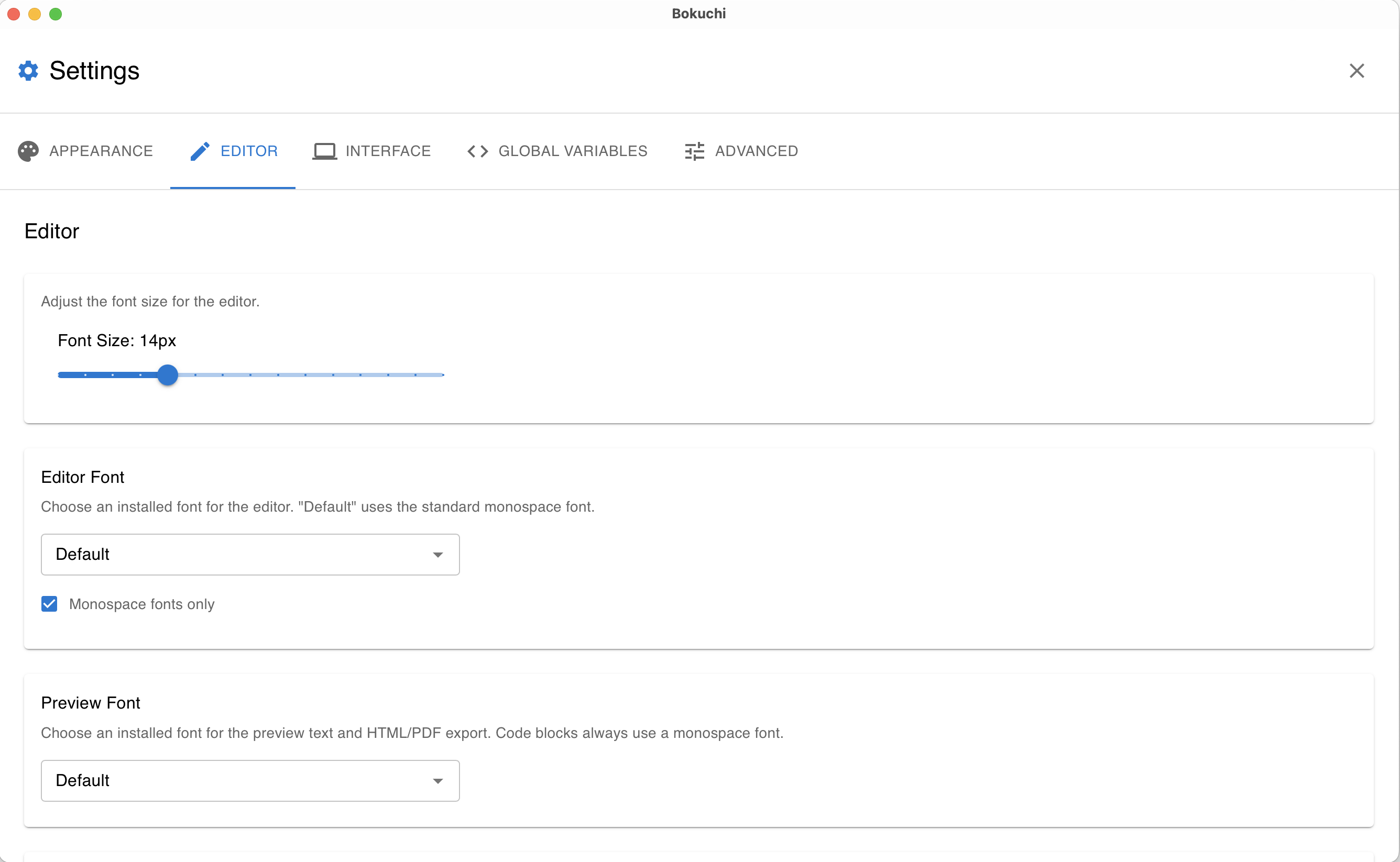
| Font size | Editor text size | 14 |
| Editor font | Font used in the editor, chosen from the fonts installed on your machine | Default |
| Preview font | Font used for the preview text and for HTML/PDF exports | Default |
| Line numbers | Show line numbers in the gutter | On |
| Tab size | Number of spaces per tab | 2 |
| Word wrap | Wrap long lines to fit the editor width | On |
| Minimap | Show a minimap overview of the document | On |
| Formatting bar | Show the Markdown formatting toolbar above the editor | On |
Choosing Fonts
Section titled “Choosing Fonts”Both font pickers list the fonts installed on your machine, and each option is shown in its own font so you can compare them at a glance. The pickers are searchable — start typing a name and the list narrows down, so a few keystrokes and Enter get you there.
- Editor font — The font used while you write. A Monospace fonts only filter (on by default) narrows the list to fixed-width fonts, which keep characters neatly aligned while editing. Uncheck it to pick any font
- Preview font — The font used for the preview text. It also applies to HTML and PDF exports, so exported documents look the same as the preview. Code blocks always keep a monospace font, whichever preview font you choose
Pick Default in either picker to return to the standard fonts.
Appearance
Section titled “Appearance”| Setting | Description | Default |
|---|---|---|
| Theme | Choose from 9 built-in themes, or create your own | Default |
| Custom Themes | Duplicate any theme and adjust its colors to make your own | — |
See Themes for details on each theme and on creating custom themes.
Interface
Section titled “Interface”| Setting | Description | Default |
|---|---|---|
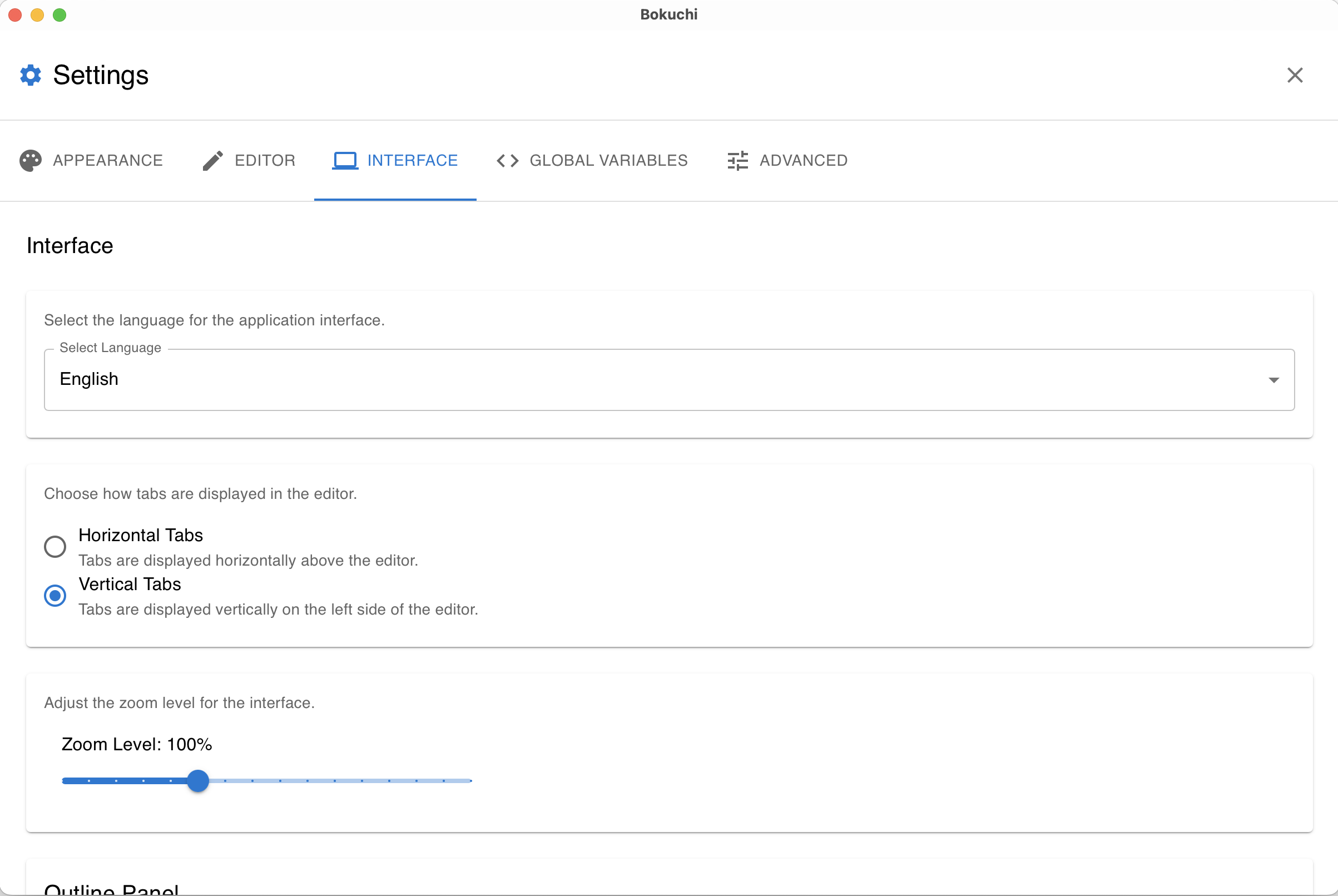
| Language | UI language (14 languages available) | English |
| Tab layout | Horizontal or vertical tabs | Horizontal |
| Tab close button position | Show close/pin icon on left or right of tab | Right |
| New tab button position | Where the new tab (+) button sits in vertical tabs: top or bottom | Top |
| Zoom level | Interface zoom | 100% |
| Scroll sync | Editor-to-preview, bidirectional, or off | Bidirectional |
| Outline display mode | Always visible, overlay, or off | Always visible |
| Explorer display mode | Persistent, overlay, or off | Off |
| File filter | Show Markdown files only or all files | Markdown only |
Advanced
Section titled “Advanced”| Setting | Description | Default |
|---|---|---|
| Auto save | Save files automatically after 3 seconds of inactivity | On |
| Show whitespace | Display invisible characters | Off |
| Table conversion | How to handle pasted table data: auto, confirm, or off | Confirm |
| Table layout (Preview) | How table columns are sized in the preview and exported HTML: equal widths, fit-to-content with wrapping, or fit-to-content with horizontal scroll | Fit to content (wrap) |
Rendering Extensions
Section titled “Rendering Extensions”| Setting | Description | Default |
|---|---|---|
| KaTeX (Math Expressions) | Render math using $...$ (inline) and $$...$$ (display) syntax | On |
| Mermaid (Diagrams) | Render diagrams from ```mermaid fenced code blocks | Off |
| Marp (Presentations) | Render Markdown with marp: true front-matter as slide presentations | Off |
| Emoji Shortcodes | Convert GitHub emoji shortcodes such as :rocket: to emoji (🚀) in the preview and exports | On |
Disabled features do not load their libraries, keeping the editor lightweight.
When Marp is enabled, a Marp Theme Folder option also appears here, letting you register custom slide themes from a folder of CSS files. See Custom Themes.
Global Variables
Section titled “Global Variables”Manage your global variables — add, edit, delete, import, and export.
Export and Import Settings
Section titled “Export and Import Settings”You can export all your settings as a JSON file and import them on another machine. This is useful for backing up your configuration or sharing it.
- Export: Click the Export button in the settings panel
- Import: Click the Import button and select a previously exported JSON file
Reset Settings
Section titled “Reset Settings”If you want to start fresh, use the Reset button to restore all settings to their defaults.
Next Steps
Section titled “Next Steps”- Themes — Preview all 9 themes and create your own
- Variables — Set up reusable text variables
- Keyboard shortcuts — Full shortcut reference