
Tabs
Bokuchi supports multi-tab editing, allowing you to work with multiple files at the same time.
Basics
Section titled “Basics”- Each open file has its own tab at the top of the window
- Click a tab to switch to that file
- The active tab is highlighted
- Hover over a tab to see the full file path in a tooltip — useful when several tabs share the same filename
Tab Navigation
Section titled “Tab Navigation”| Action | Shortcut |
|---|---|
| Next tab | Ctrl+Tab |
| Previous tab | Ctrl+Shift+Tab |
Reordering Tabs
Section titled “Reordering Tabs”Drag and drop tabs to rearrange their order.
Context Menu
Section titled “Context Menu”Right-click any tab to open the context menu with these options:
| Action | Description |
|---|---|
| Rename | Rename the file or tab title |
| Copy File Path | Copy the full file path to clipboard |
| Copy File Name | Copy just the filename to clipboard |
| Reveal in Finder / Reveal in File Explorer | Open the OS file manager with this file selected (see below) |
| Pin Tab / Unpin Tab | Toggle pin status |
| Close Tab | Close this tab |
| Close Other Tabs | Close all tabs except this one |
| Close Tabs to the Right | Close all tabs to the right (horizontal) or below (vertical) |
| Close All Tabs | Close all tabs |
Revealing a File in the File Manager
Section titled “Revealing a File in the File Manager”Choose Reveal in Finder (macOS), Reveal in File Explorer (Windows), or Open Containing Folder (Linux) to open the folder that holds the file, with the file already selected. It’s a quick way to attach the file to an email, move it, or check what else is in that folder.
This option is only available for tabs that have been saved to disk. Unsaved tabs have no file to reveal, so the item is grayed out.
Tab Pinning
Section titled “Tab Pinning”Pin important tabs to protect them from being closed by bulk close actions (Close Other, Close to the Right, Close All).
- Double-click a tab or use the context menu to pin/unpin
- Pinned tabs show a pin icon instead of the close button
- Pinned tabs have a colored top border for easy identification
Tab Rename
Section titled “Tab Rename”Rename tabs directly from the context menu:
- Saved files — The actual file on disk is renamed
- Unsaved tabs — Only the tab title is changed
A dialog appears where you can type the new name. Press Enter or click the confirmation button to apply.
Unsaved Tab Title
Section titled “Unsaved Tab Title”Unsaved tabs automatically display the text from the first line as the tab title. If the first line is empty, the title shows “Untitled”. Long titles are truncated with an ellipsis.
Unsaved Changes Indicator
Section titled “Unsaved Changes Indicator”A tab with unsaved changes shows a badge or dot indicator. When you try to close a tab with unsaved changes, Bokuchi will ask if you want to save first.
Tab Layout
Section titled “Tab Layout”Bokuchi offers two tab layouts:
- Horizontal (default) — Tabs appear in a row at the top
- Vertical — Tabs appear in a column on the left side
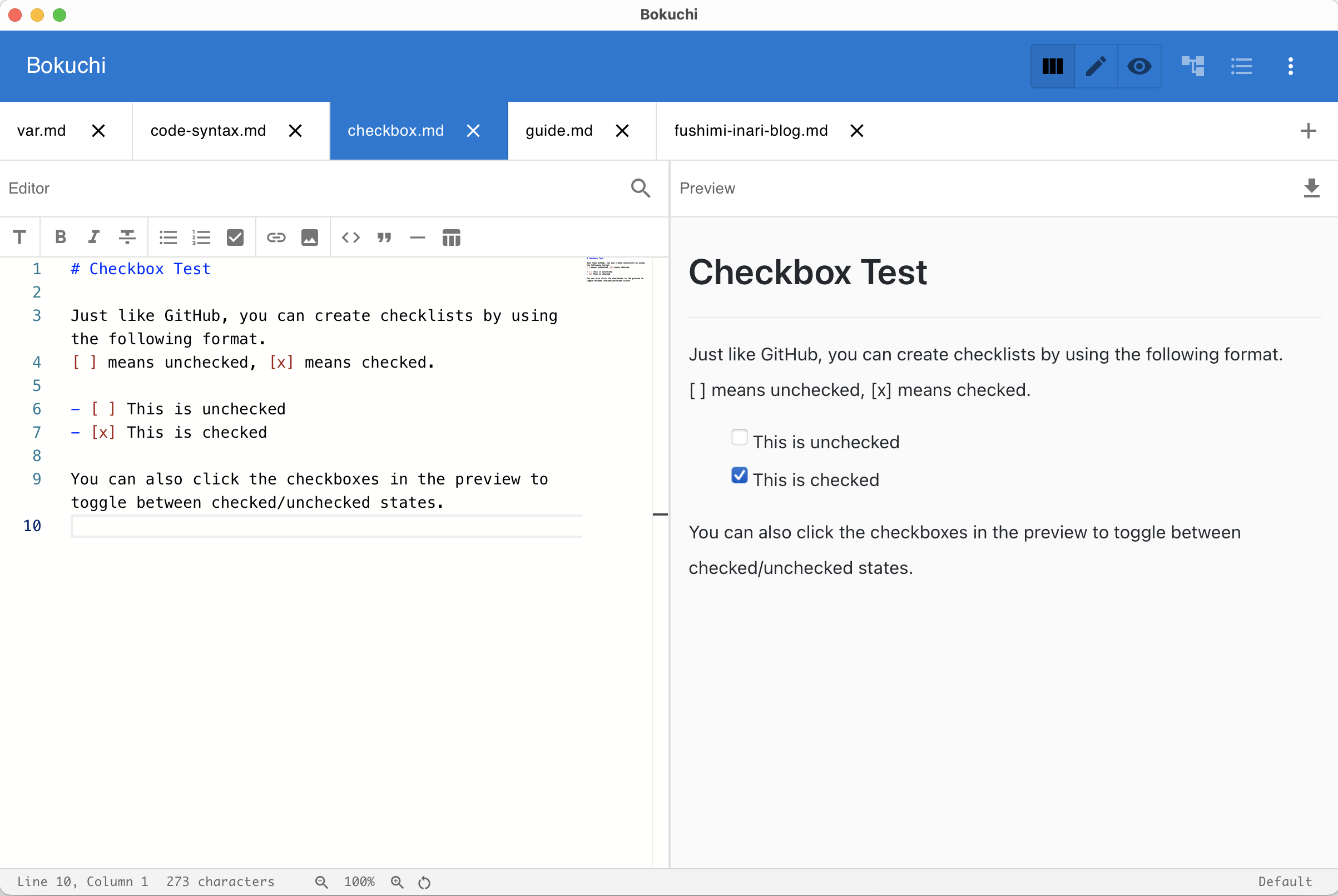
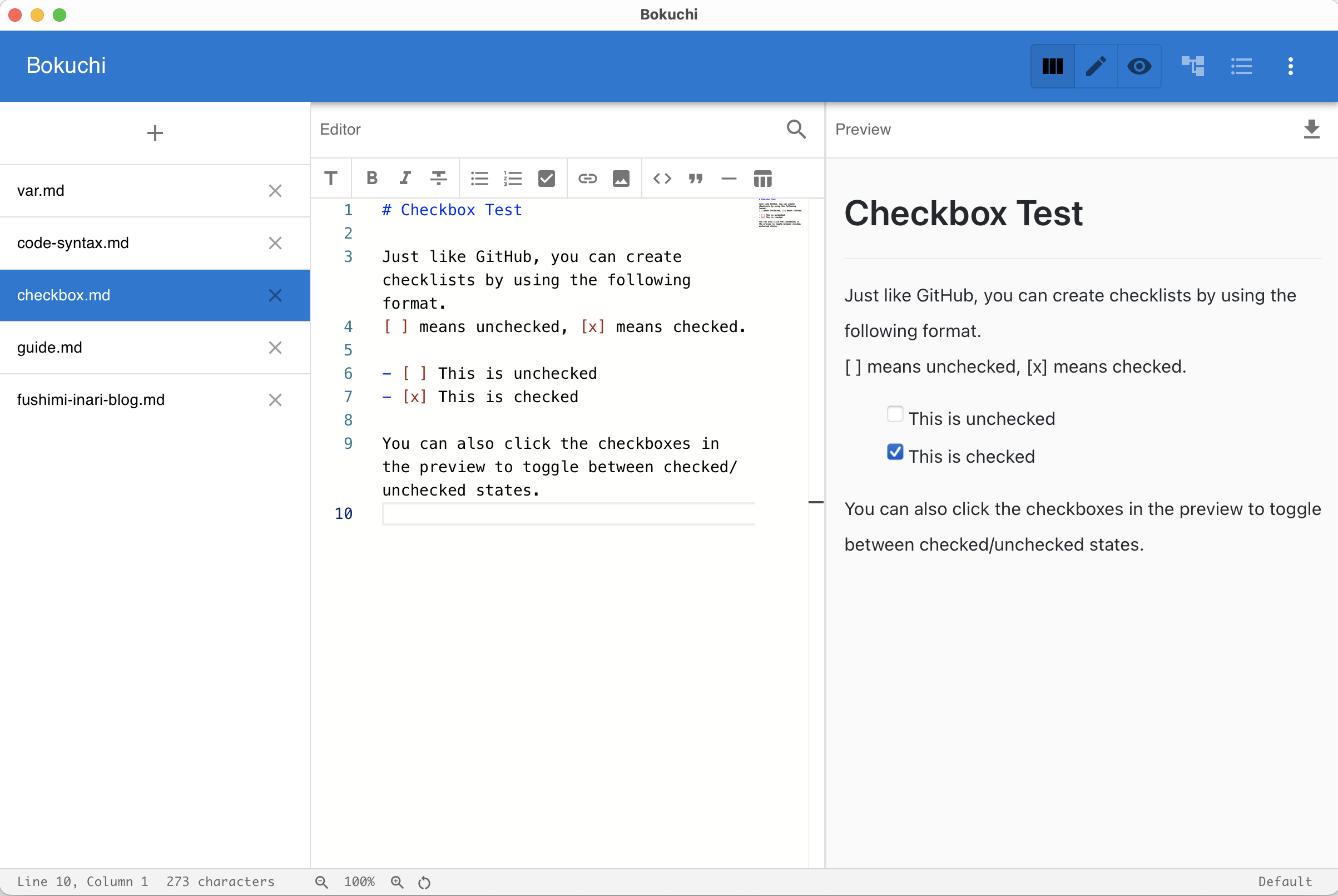
Switch between layouts in Settings > Interface > Tab Layout.
Close Button Position
Section titled “Close Button Position”You can choose whether the close button (or pin icon for pinned tabs) appears on the left or right side of each tab. Change this in Settings > Interface > Tab Close Button Position.
Resizing the Vertical Tab Bar
Section titled “Resizing the Vertical Tab Bar”Drag the right edge of the vertical tab sidebar to make it wider or narrower — handy when your file names are long, or when you want to give the editor more room. The width you choose is remembered, even after you restart Bokuchi.
If you keep dragging the sidebar very narrow, it switches to auto-hide mode (described below) instead of shrinking further. To go back to a fixed sidebar, click the pin button.
Auto-Hiding the Vertical Tab Bar
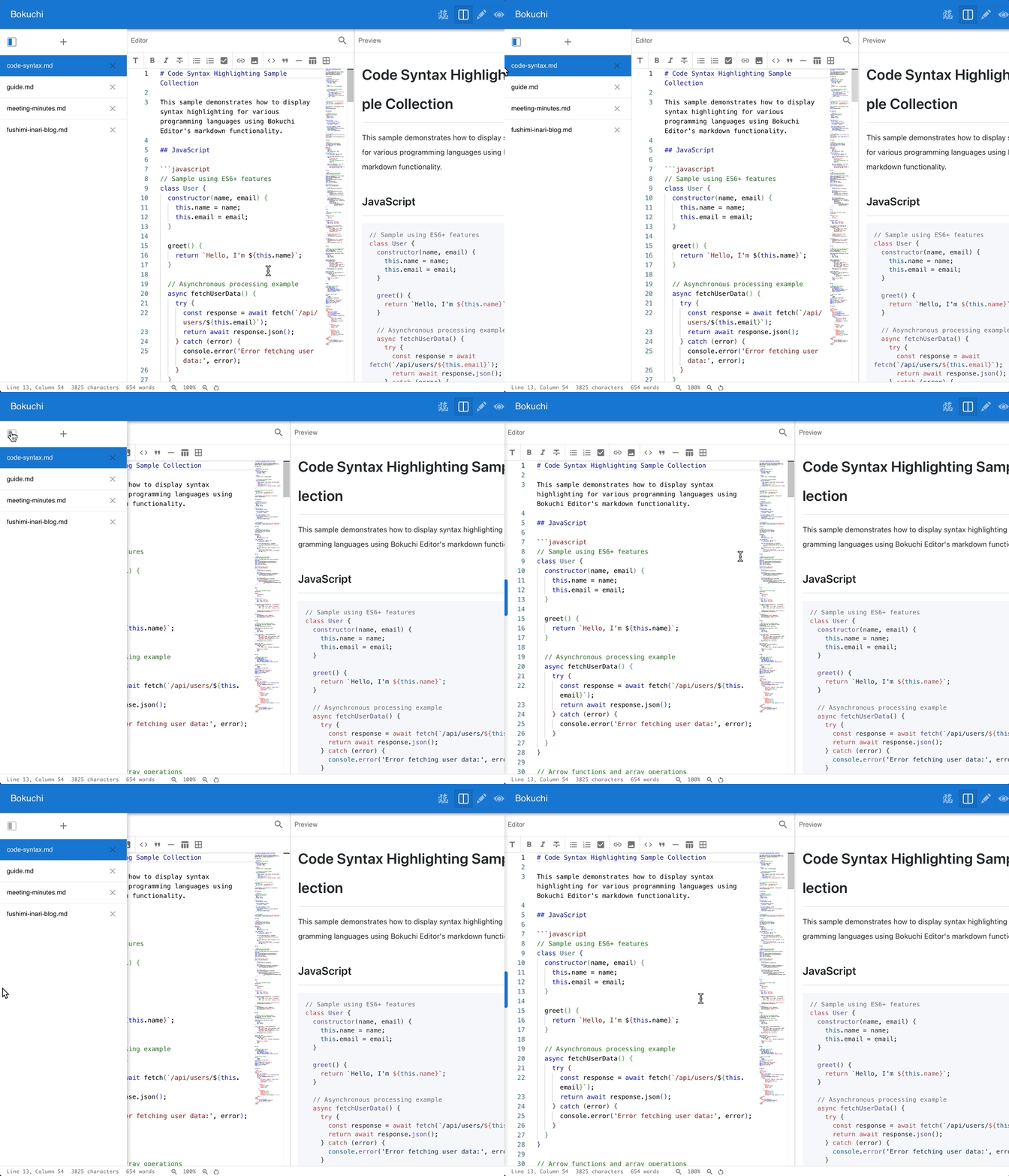
Section titled “Auto-Hiding the Vertical Tab Bar”When you use vertical tabs, the sidebar has a pin button in its header:
- Pinned (default) — the tab sidebar stays visible next to the editor
- Unpinned — the sidebar tucks away and slides out when you move your mouse to the edge, then hides again
Unpinning is a good way to reclaim screen space while keeping your tabs one hover away.
New Tab Button Position
Section titled “New Tab Button Position”Also for vertical tabs, you can choose where the new tab (+) button appears, in Settings > Interface > Tab Layout:
- Top (default) — the button is fixed at the top of the sidebar and always visible
- Bottom — the button sits below the last tab and sticks to the bottom edge when the list overflows
Session Persistence
Section titled “Session Persistence”All open tabs are saved when you close Bokuchi and restored when you reopen it, including the content of each tab and which tab was active.
Next Steps
Section titled “Next Steps”- Editor and preview — Learn about view modes
- Folder tree — Browse and open files from a directory