
UI Overview
This page explains each part of the Bokuchi window so you know where everything is.
Main Areas
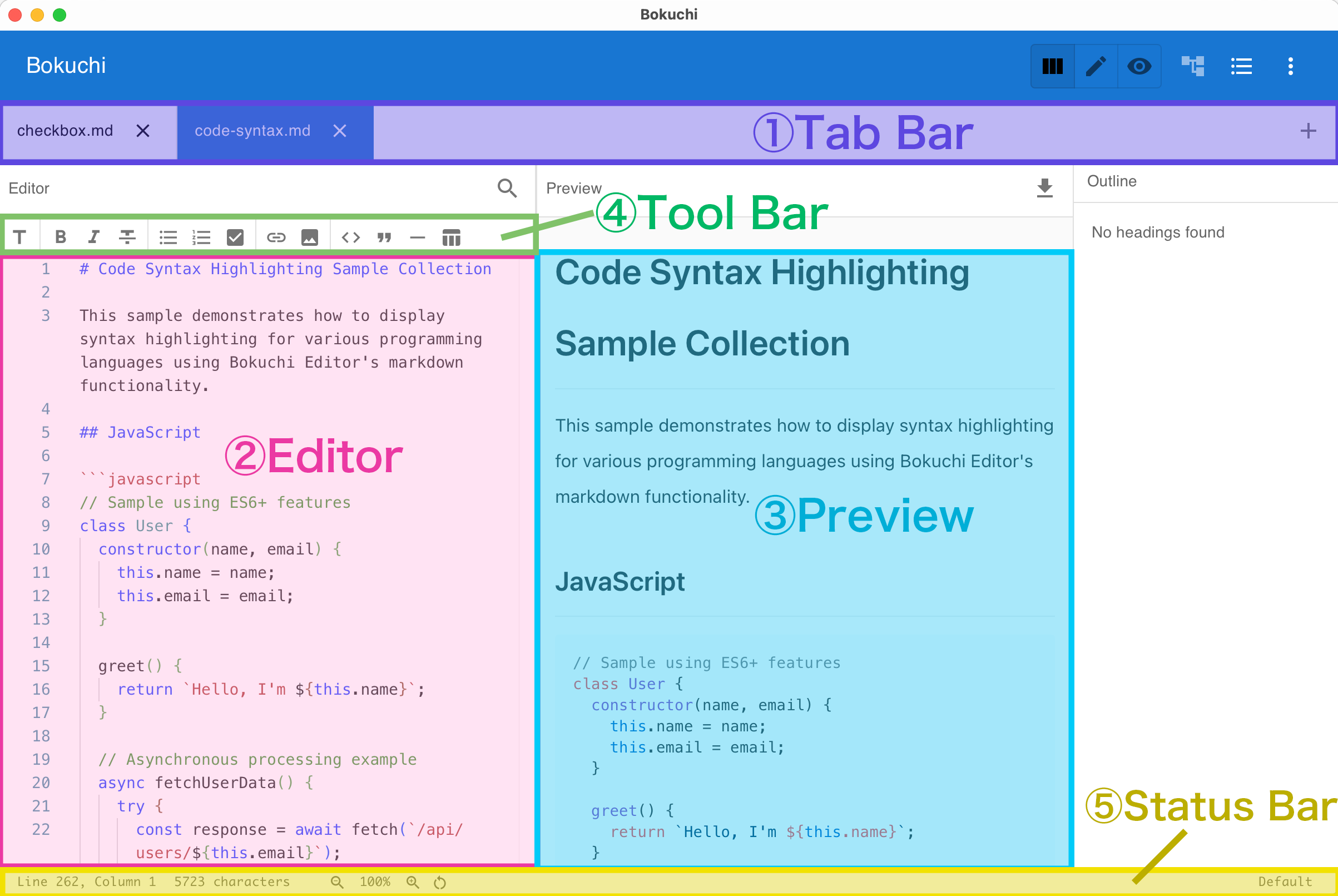
Section titled “Main Areas”Tab Bar
Section titled “Tab Bar”The tab bar sits at the top of the window. Each open file appears as a tab. You can:
- Click a tab to switch to that file
- Drag tabs to reorder them
- Right-click a tab for more options (close, close others, etc.)
- A dot or badge on a tab means the file has unsaved changes
Editor (Left Panel)
Section titled “Editor (Left Panel)”This is where you type your Markdown text. It features:
- Syntax highlighting for Markdown
- Line numbers (can be toggled on/off)
- Word wrap (configurable)
- Minimap (optional)
Preview (Right Panel)
Section titled “Preview (Right Panel)”This panel shows the rendered result of your Markdown in real time. Features include:
- Synchronized scrolling with the editor
- Clickable checkboxes (for task lists)
- Syntax-highlighted code blocks (190+ languages)
- Clickable links
Markdown Toolbar
Section titled “Markdown Toolbar”Located between the tab bar and the editor, the toolbar provides buttons for common formatting: headings, bold, italic, lists, links, images, code blocks, tables, and more. You don’t need to memorize Markdown syntax — just select text and click a button.
Status Bar
Section titled “Status Bar”At the bottom of the window, the status bar shows:
- Current line and column number
- Character count
- Current zoom level (click to adjust)
- Current theme (click to switch)
Folder Tree (Left Side Panel)
Section titled “Folder Tree (Left Side Panel)”An optional panel that shows files in a folder. Open it with Ctrl+Shift+E or from the menu. You can click any file to open it in a new tab.
Outline Panel (Right Side Panel)
Section titled “Outline Panel (Right Side Panel)”An optional panel that shows the heading structure of your current document. Open it with Ctrl+Shift+O. Click any heading to jump to that position in the editor.
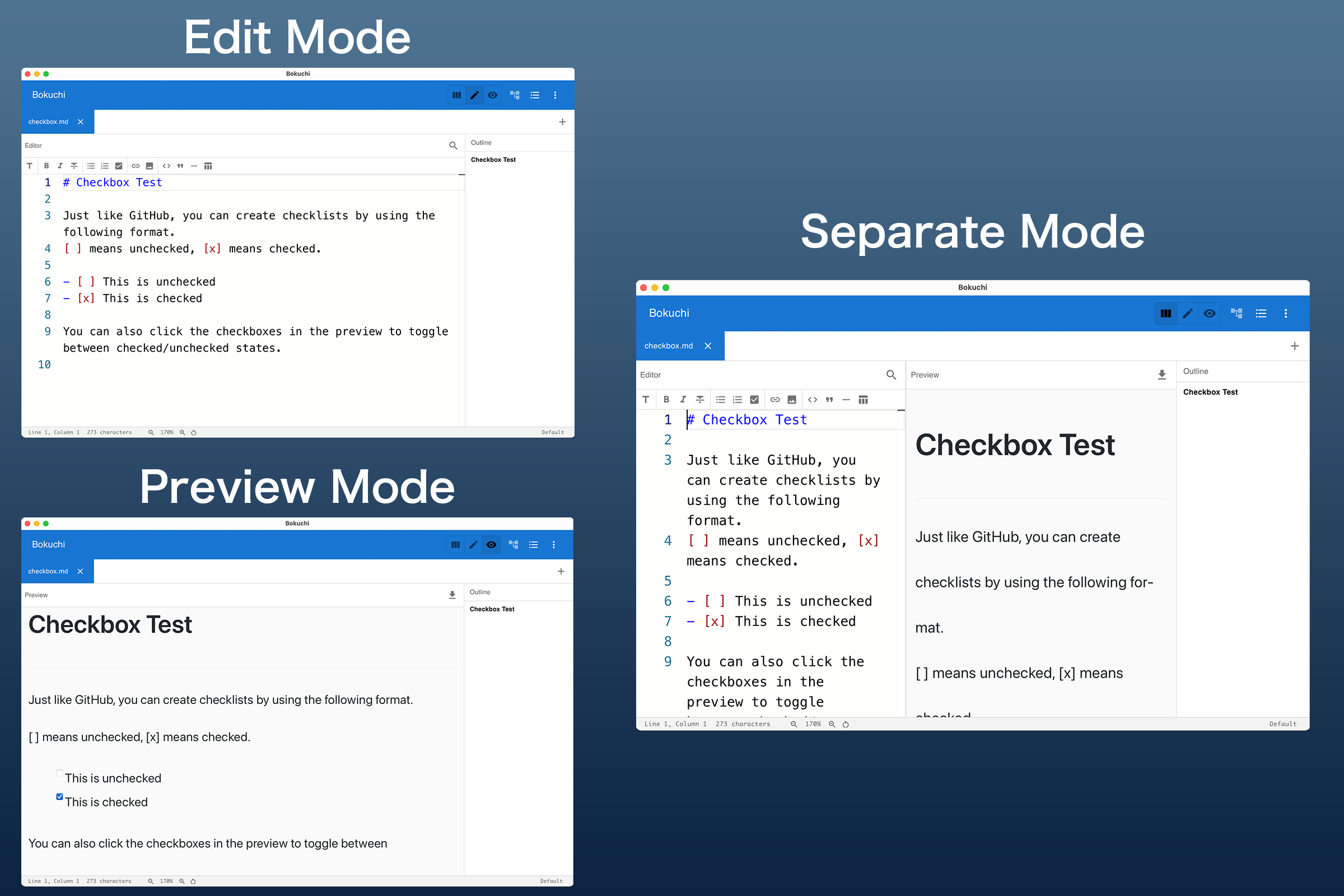
View Modes
Section titled “View Modes”Bokuchi offers three view modes:
| Mode | Description | Shortcut |
|---|---|---|
| Split View | Editor and preview side by side | Ctrl+Shift+1 |
| Editor Only | Full-width editor, no preview | Ctrl+Shift+2 |
| Preview Only | Full-width preview, no editor | Ctrl+Shift+3 |
You can also cycle through these modes with Ctrl+Shift+V.
Next Steps
Section titled “Next Steps”- Markdown basics — Learn the formatting syntax
- Markdown toolbar — Use buttons instead of typing syntax
- Keyboard shortcuts — Speed up your workflow