
File Operations
Bokuchi provides all the file operations you need for working with Markdown documents.
Creating a New File
Section titled “Creating a New File”Press Cmd+N (macOS) or Ctrl+N (Windows/Linux) to create a new empty document. It opens in a new tab.
Opening Files
Section titled “Opening Files”There are several ways to open files:
- Keyboard shortcut: Press Cmd+O (macOS) or Ctrl+O (Windows/Linux) to open the file dialog
- Drag and drop: Drag one or more
.mdfiles onto the Bokuchi window - Folder tree: Open a folder with the folder tree panel and click a file to open it
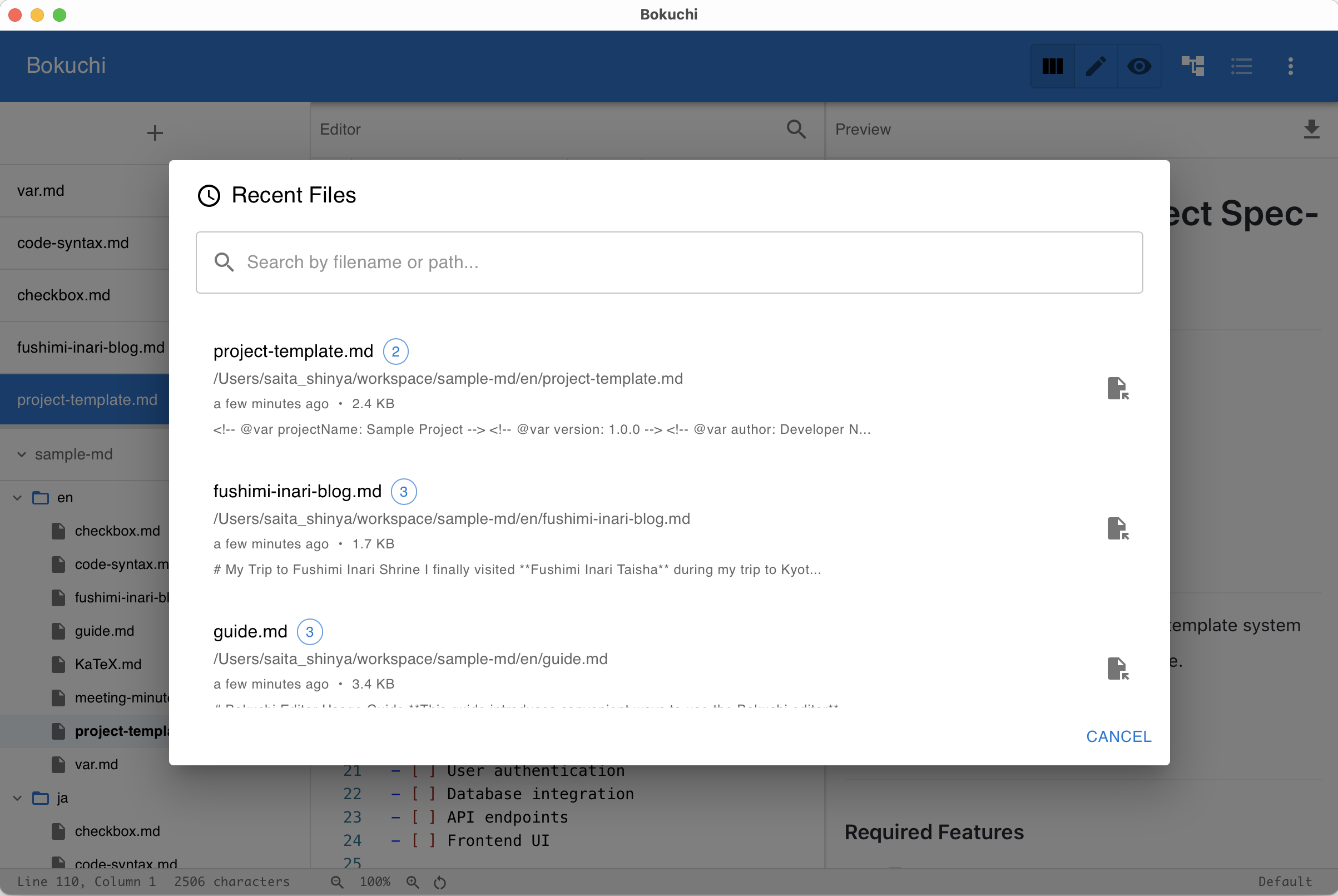
- Recent files: Press Cmd+R (macOS) or Ctrl+R (Windows/Linux) to see recently opened files
Bokuchi can open .md and .txt files.
Saving Files
Section titled “Saving Files”| Action | macOS | Windows / Linux |
|---|---|---|
| Save | Cmd+S | Ctrl+S |
| Save As | Cmd+Shift+S | Ctrl+Shift+S |
When saving a new file for the first time, a save dialog appears so you can choose the location and file name.
Auto-Save
Section titled “Auto-Save”Bokuchi can automatically save your files as you type. Auto-save triggers 3 seconds after you stop typing (debounced).
- Default: Enabled
- Configure: Go to Settings > Advanced > Auto Save
Recent Files
Section titled “Recent Files”Press Cmd+R (macOS) or Ctrl+R (Windows/Linux) to open the recent files dialog.
Features:
- Search and filter through recently opened files
- Preview the content of each file
- Copy the file path
- Remove files from the list
- Configurable maximum number of entries (default: 20)
External File Changes
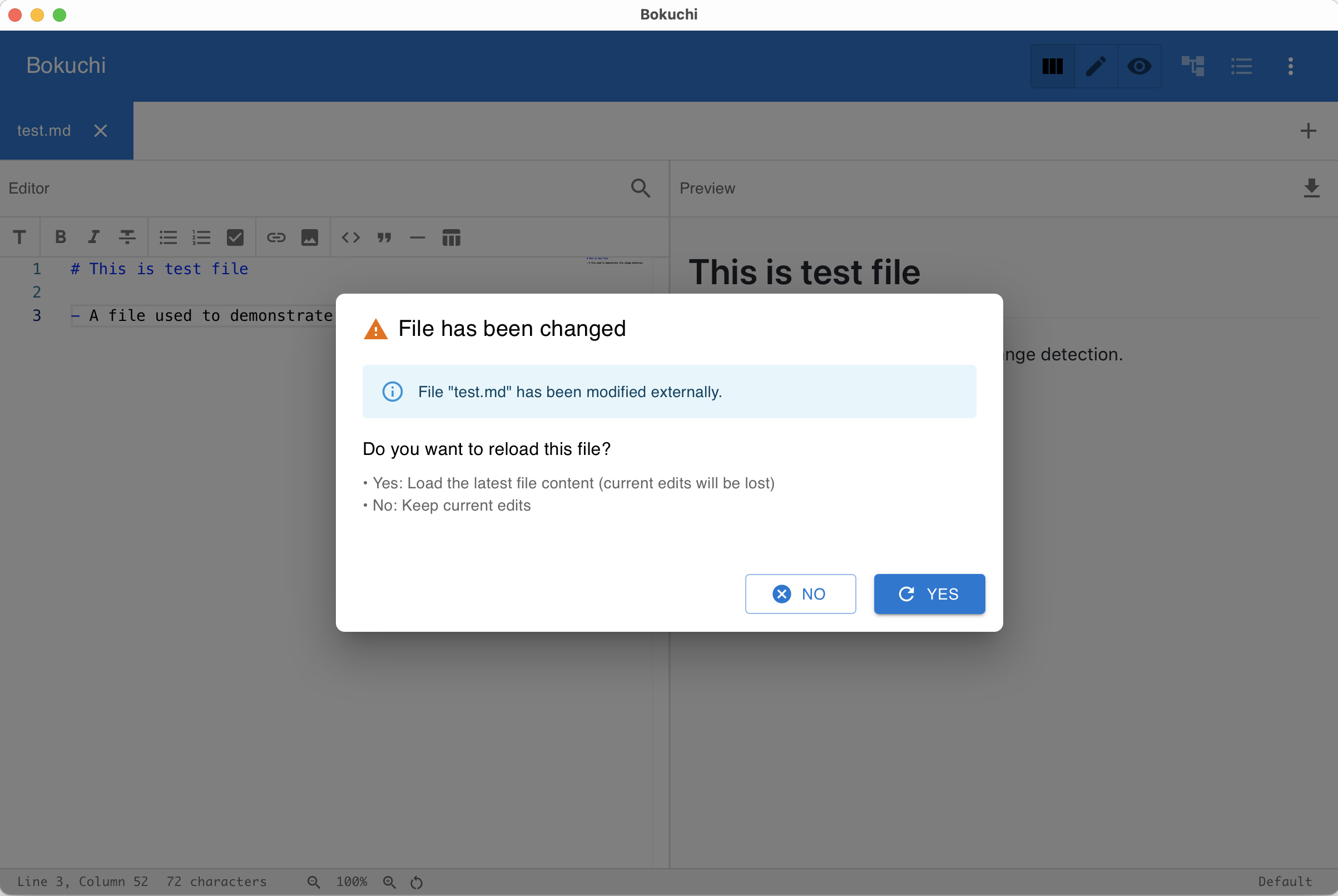
Section titled “External File Changes”If you edit a file in another application while it is open in Bokuchi, a dialog will appear asking whether you want to reload the file with the external changes.
Session Restoration
Section titled “Session Restoration”When you close and reopen Bokuchi, all your previously open tabs, their content, and your settings are automatically restored.
If a file has been moved or deleted since your last session, Bokuchi handles this gracefully and notifies you.