
Folder Tree
The folder tree panel lets you browse a directory and open files directly from Bokuchi, similar to a file explorer.
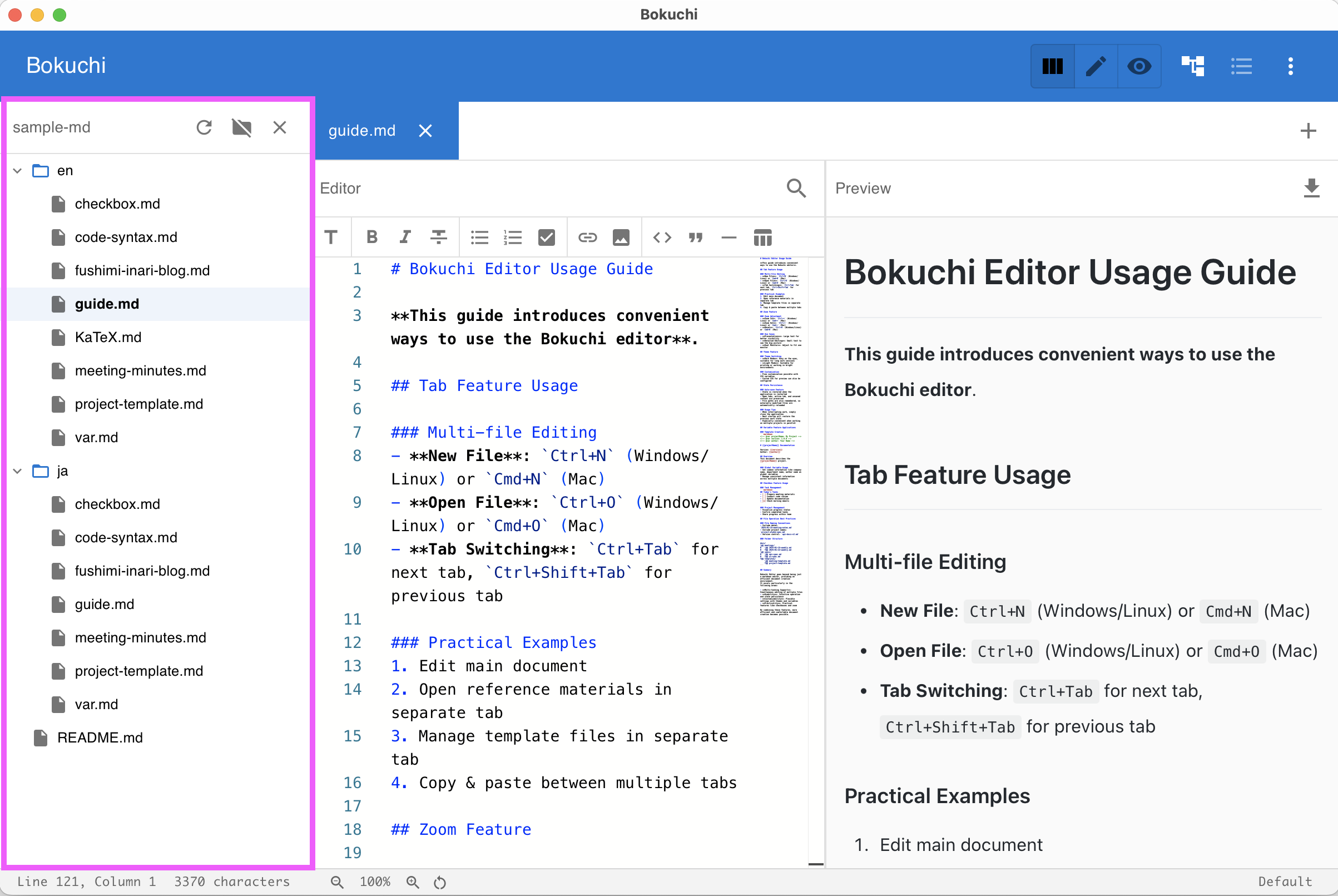
Opening the Folder Tree
Section titled “Opening the Folder Tree”Press Ctrl+Shift+E to toggle the folder tree panel.
To set the folder to browse, use the menu or the button in the panel to select a directory.
Features
Section titled “Features”- File browsing — Navigate your folder structure in a tree view
- Click to open — Click a file to open it in a new tab
- Lazy loading — Subdirectories load their contents on demand for performance
- Active file highlight — The currently open file is highlighted in the tree
- File filter — Show only Markdown files or all files
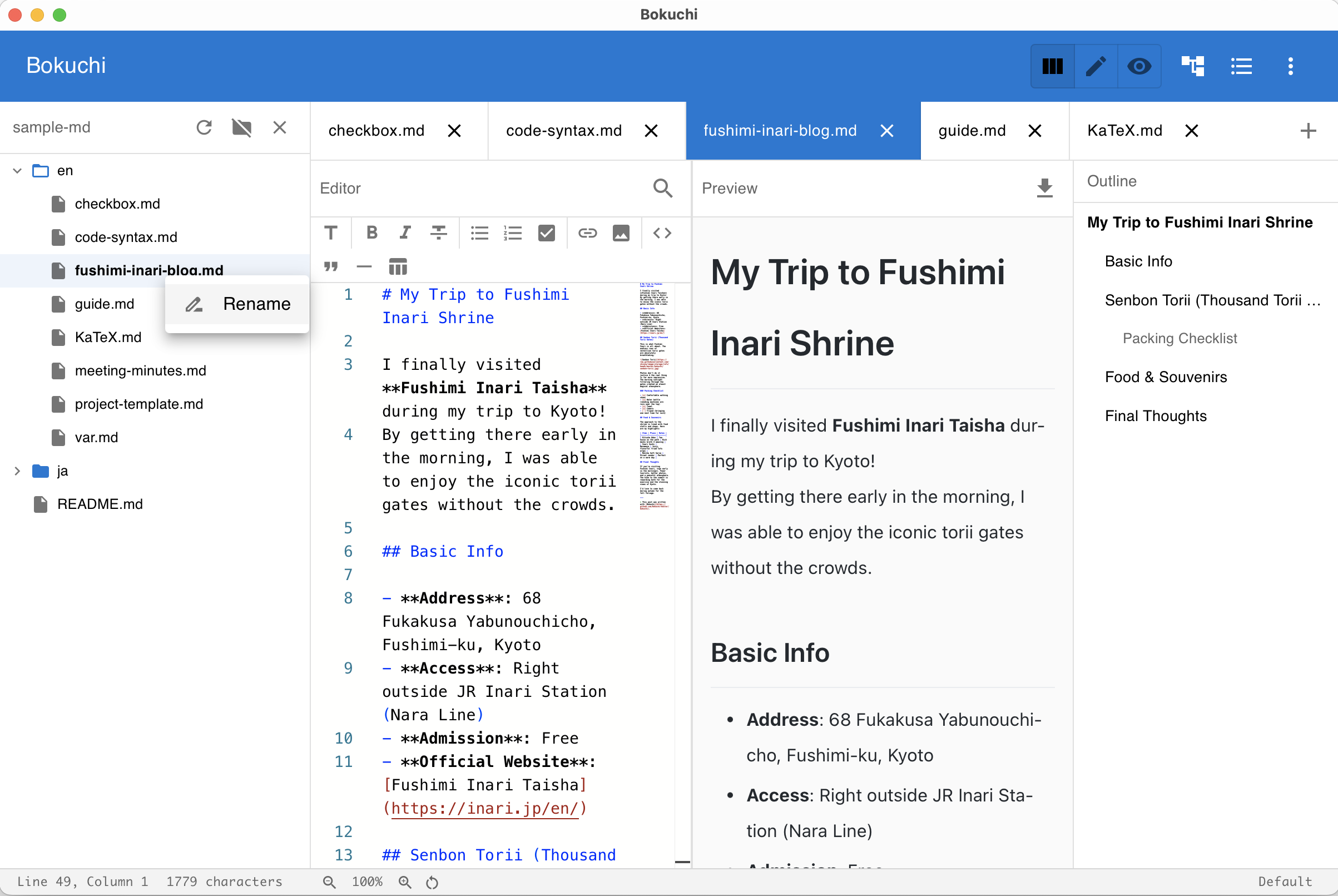
- Rename — Right-click a file to rename it from the context menu
Renaming Files
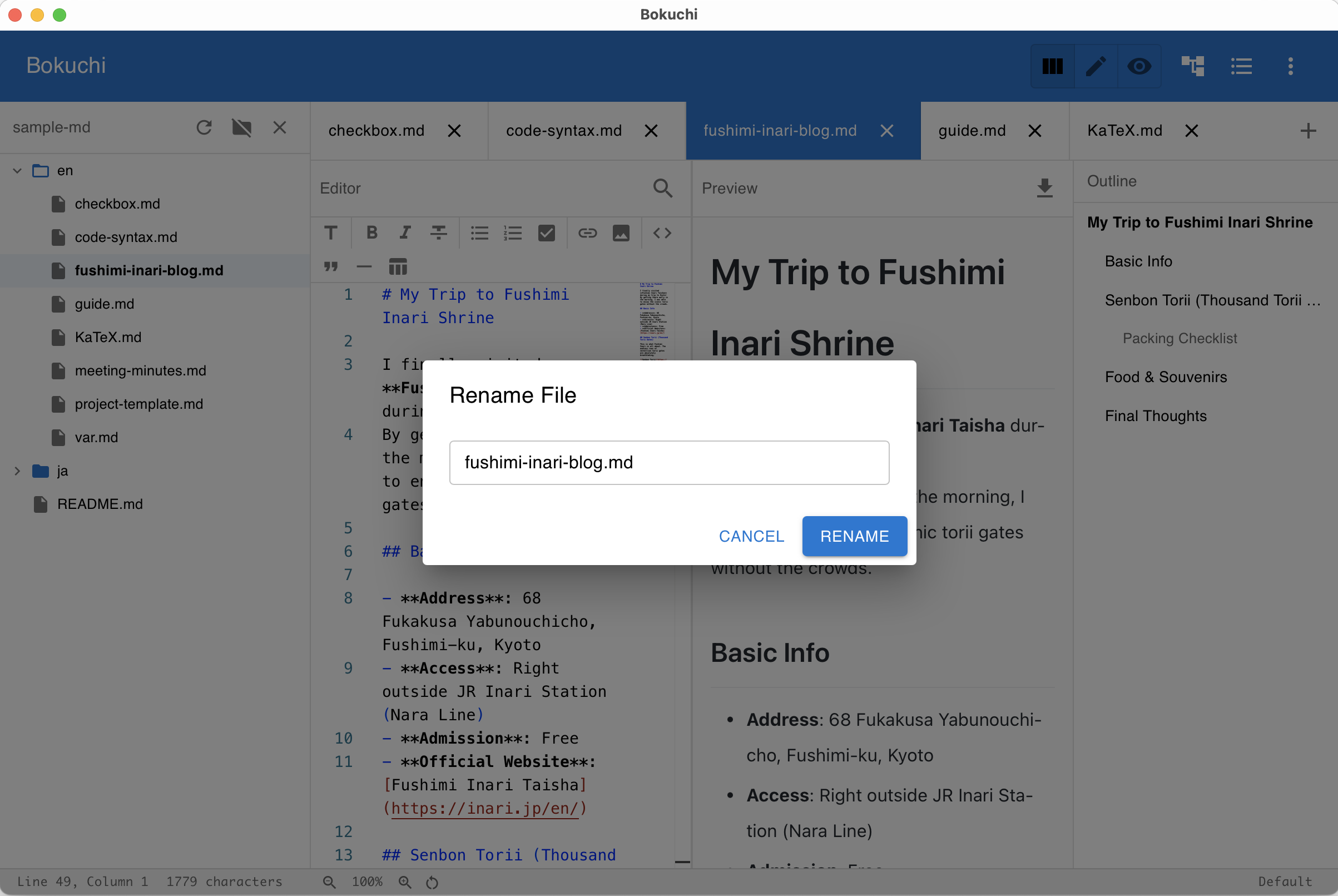
Section titled “Renaming Files”Right-click a file in the tree to open the context menu, then select Rename.
A dialog appears where you can enter the new file name.
Display Modes
Section titled “Display Modes”| Mode | Description |
|---|---|
| Persistent | Always visible as a side panel |
| Overlay | Appears on top of the content when toggled |
| Off | Panel is hidden |
Change the display mode in Settings > Interface > Explorer Display Mode.
Merged Sidebar
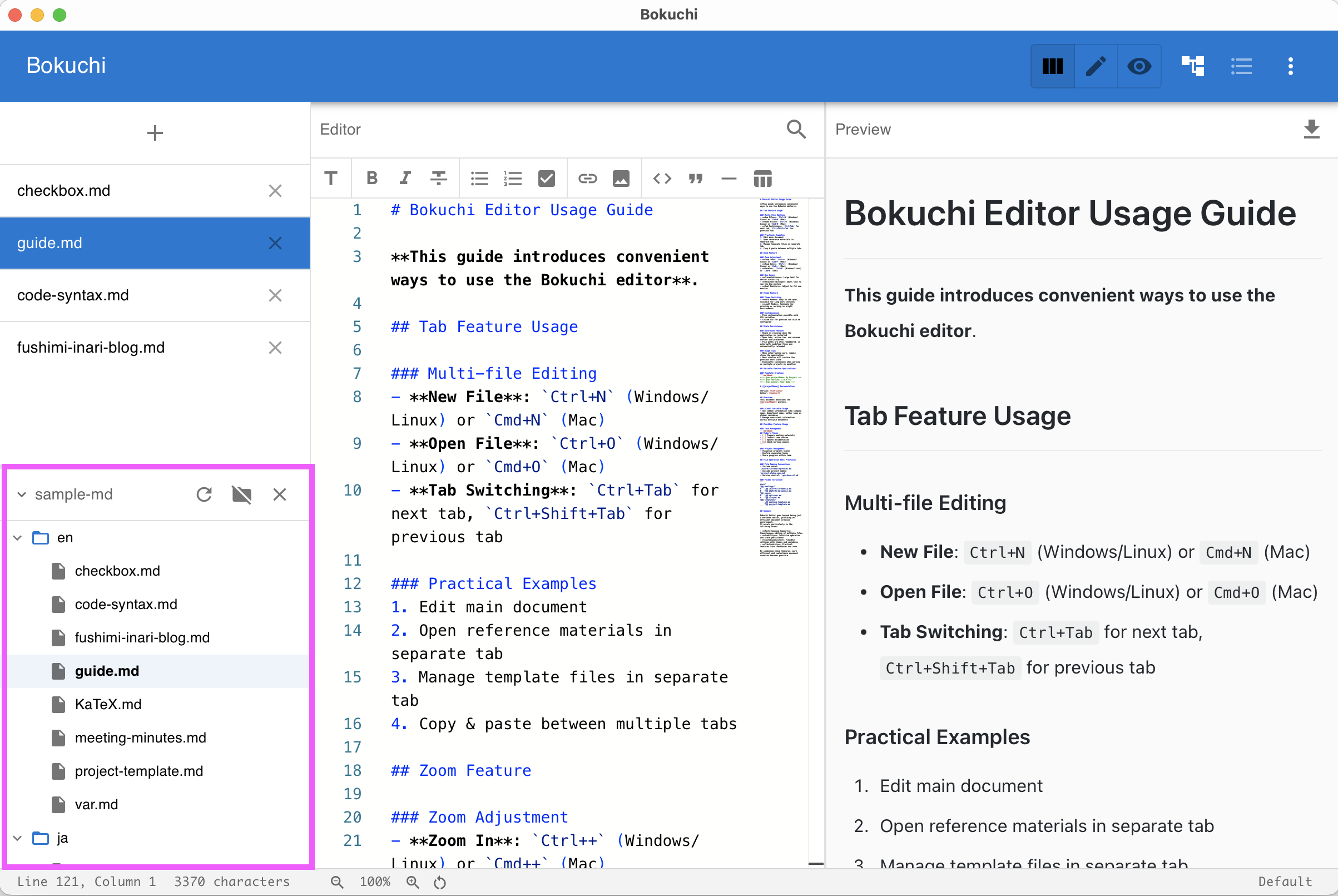
Section titled “Merged Sidebar”When using vertical tabs, the folder tree can be combined with the tab list in a single resizable sidebar for a more compact layout.
Next Steps
Section titled “Next Steps”- Tabs — Manage open files with tabs
- Outline panel — Navigate headings within a document