
Markdown Basics
Markdown is a simple way to format text using special characters. This page covers all the basics you need to know.
Headings
Section titled “Headings”Headings create section titles. Use # symbols at the beginning of a line.
| Markdown | Result |
|---|---|
# Heading 1 | Largest heading |
## Heading 2 | Second-level heading |
### Heading 3 | Third-level heading |
#### Heading 4 | Fourth-level heading |
##### Heading 5 | Fifth-level heading |
###### Heading 6 | Smallest heading |
When to use: Use headings to organize your document into sections. The outline panel will display your heading structure for easy navigation.
Bold, Italic, and Strikethrough
Section titled “Bold, Italic, and Strikethrough”| Markdown | Result | Use case |
|---|---|---|
**bold text** | bold text | Emphasize important words |
*italic text* | italic text | Titles, terms, subtle emphasis |
~~strikethrough~~ | Show deleted or outdated text | |
***bold and italic*** | bold and italic | Strong emphasis |
Bullet Lists
Section titled “Bullet Lists”Use -, *, or + at the beginning of each line:
- First item- Second item - Nested item - Another nested item- Third itemNumbered Lists
Section titled “Numbered Lists”Use numbers followed by a period:
1. First step2. Second step3. Third stepCheckboxes (Task Lists)
Section titled “Checkboxes (Task Lists)”Use - [ ] for unchecked and - [x] for checked items:
- [x] Completed task- [ ] Pending task- [ ] Another taskLinks and Images
Section titled “Links and Images”[Link text](https://example.com)Images
Section titled “Images”You can use relative paths for local images or URLs for online images.
Blockquotes
Section titled “Blockquotes”Use > at the beginning of a line to create a quote:
> This is a blockquote.> It can span multiple lines.When to use: Highlight important information, quote sources, or add notes.
Inline Code
Section titled “Inline Code”Wrap text in backticks for inline code: `code here`
Code Blocks
Section titled “Code Blocks”Use triple backticks for multi-line code. Specify a language for syntax highlighting:
```javascriptfunction hello() { console.log("Hello, world!");}```Bokuchi supports syntax highlighting for over 190 programming languages.
Tables
Section titled “Tables”Use pipes | and dashes - to create tables:
| Name | Role | Status ||---------|----------|---------|| Alice | Designer | Active || Bob | Engineer | Active |Horizontal Rules
Section titled “Horizontal Rules”Create a divider line with three or more dashes:
---Math Expressions (KaTeX)
Section titled “Math Expressions (KaTeX)”When KaTeX is enabled in Settings > Advanced > Rendering Extensions, you can render math expressions.
Inline math — wrap with single dollar signs:
The formula $E = mc^2$ is well known.Display math — wrap with double dollar signs:
$$\sum_{i=1}^{n} x_i$$Diagrams (Mermaid)
Section titled “Diagrams (Mermaid)”When Mermaid is enabled in Settings > Advanced > Rendering Extensions, you can create diagrams using ```mermaid fenced code blocks.
```mermaidgraph TD A[Start] --> B{Decision} B -->|Yes| C[Result A] B -->|No| D[Result B]```Mermaid supports flowcharts, sequence diagrams, class diagrams, state diagrams, and more.
Text Effects (Bokuchi Only)
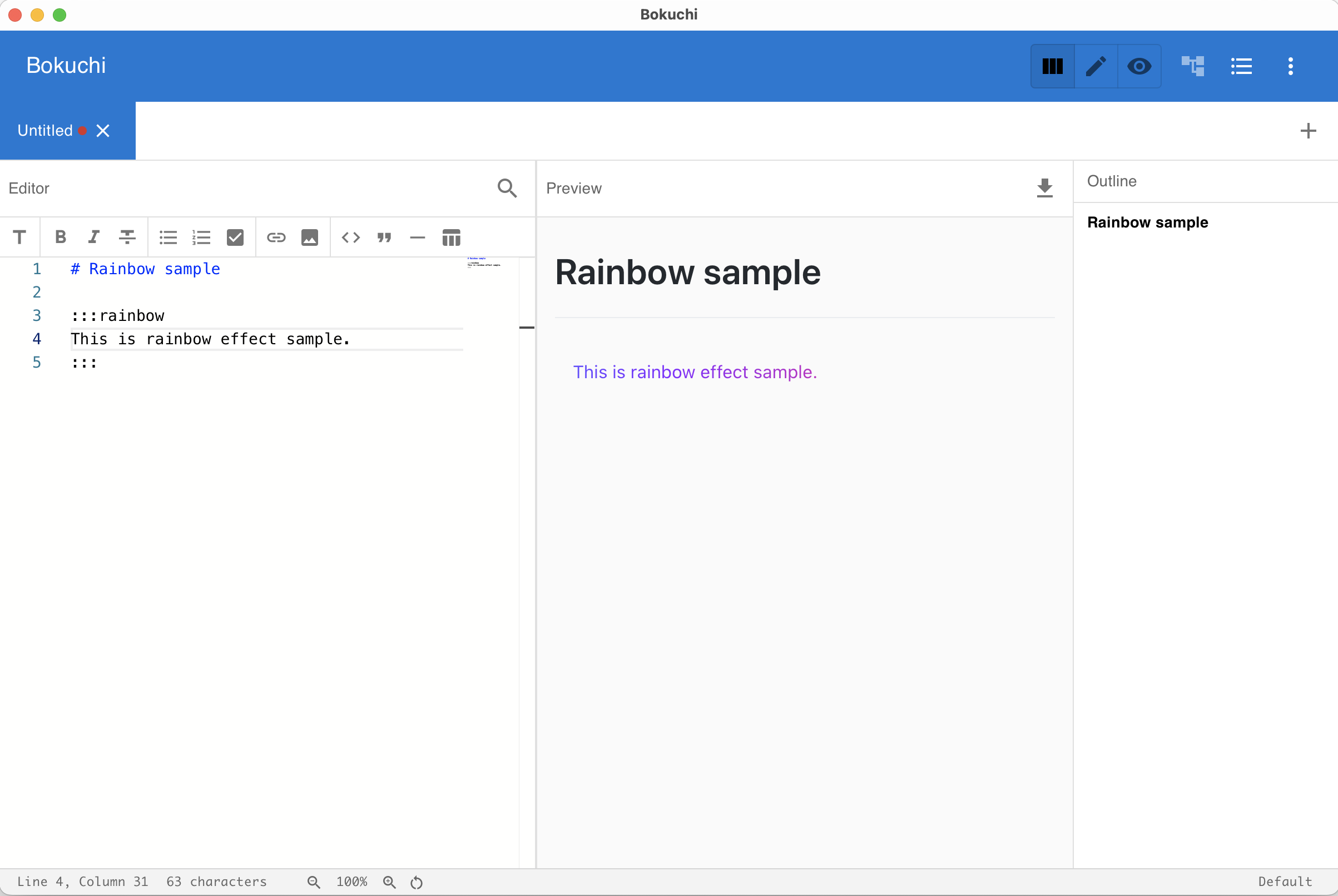
Section titled “Text Effects (Bokuchi Only)”Bokuchi supports special visual effects in the preview. Wrap content between :::effectName and ::: markers:
:::rainbowThis text displays in rainbow colors.:::Available effects:
| Effect | Description |
|---|---|
shake | Text shakes back and forth |
rainbow | Text cycles through rainbow colors |
glow | Text pulses with a glow effect |
bounce | Text bounces up and down |
blink | Text blinks on and off |
Next Steps
Section titled “Next Steps”- Markdown toolbar — Apply formatting using buttons
- Markdown cheatsheet — Quick reference card
- Editor and preview — Learn about the editing experience