
Search & Replace
Opening the Search Panel
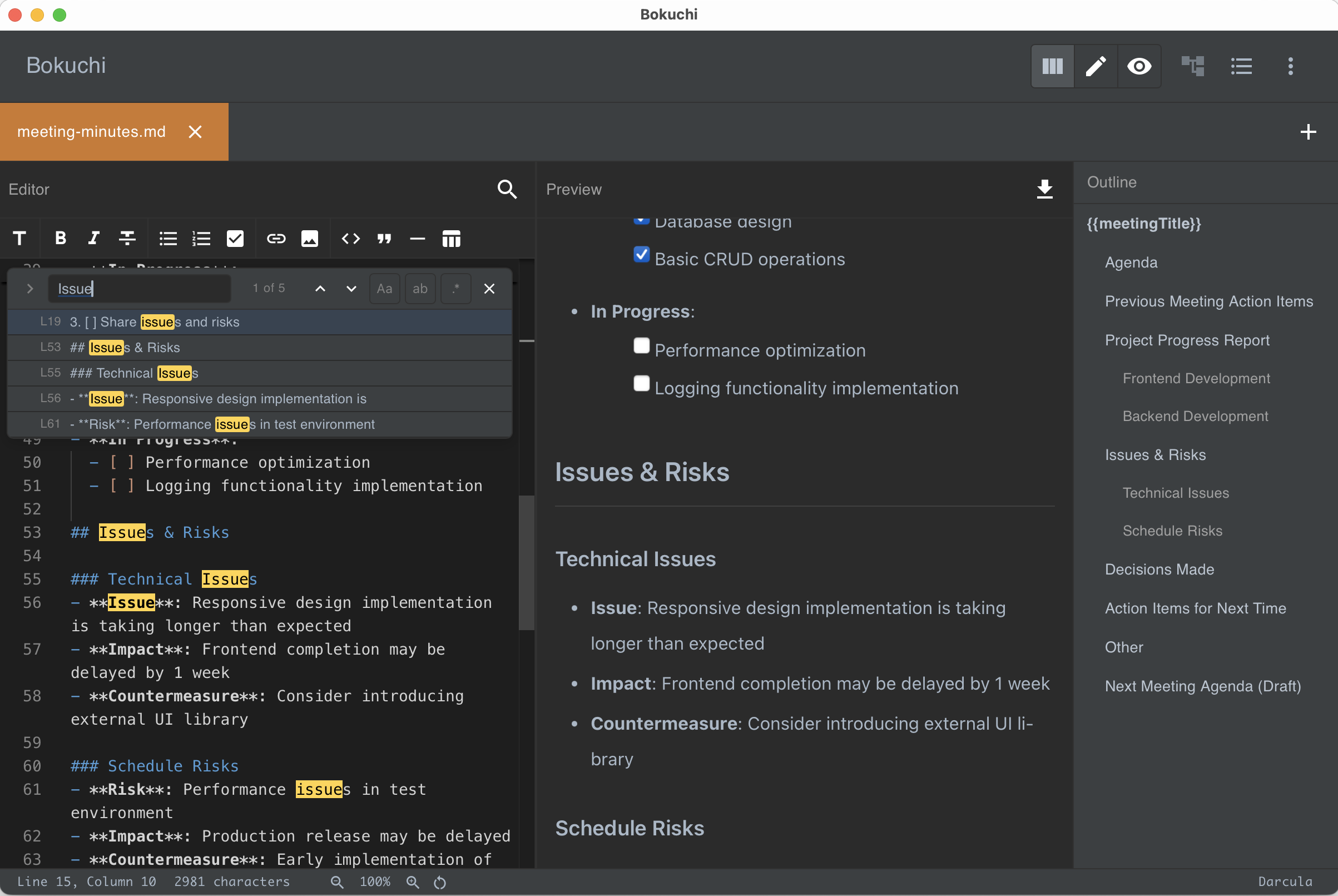
Section titled “Opening the Search Panel”Use the standard keyboard shortcut Cmd+F (macOS) or Ctrl+F (Windows/Linux) to open the search panel within the editor.
Search Features
Section titled “Search Features”- Match count — The total number of matches is displayed
- Navigate matches — Use the arrow buttons (or Enter / Shift+Enter) to jump to the next or previous match
- Case sensitivity — Toggle to match uppercase and lowercase exactly
- Whole word — Match only complete words, not partial matches
- Regular expressions — Use regex patterns for advanced searches
Replace
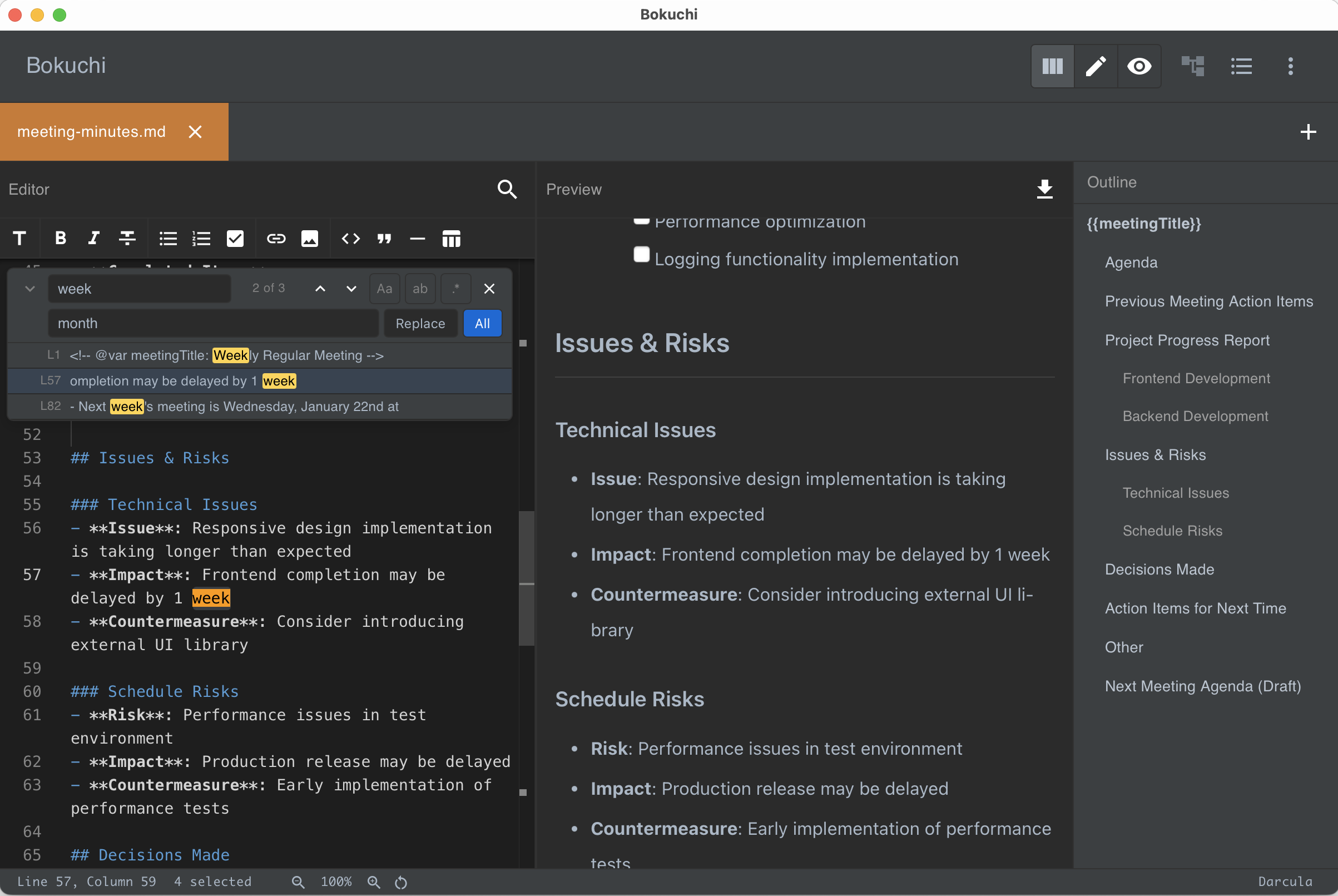
Section titled “Replace”Expand the search panel to reveal the replace field.
- Replace — Replace the current match
- Replace All — Replace every match at once
Search All Tabs
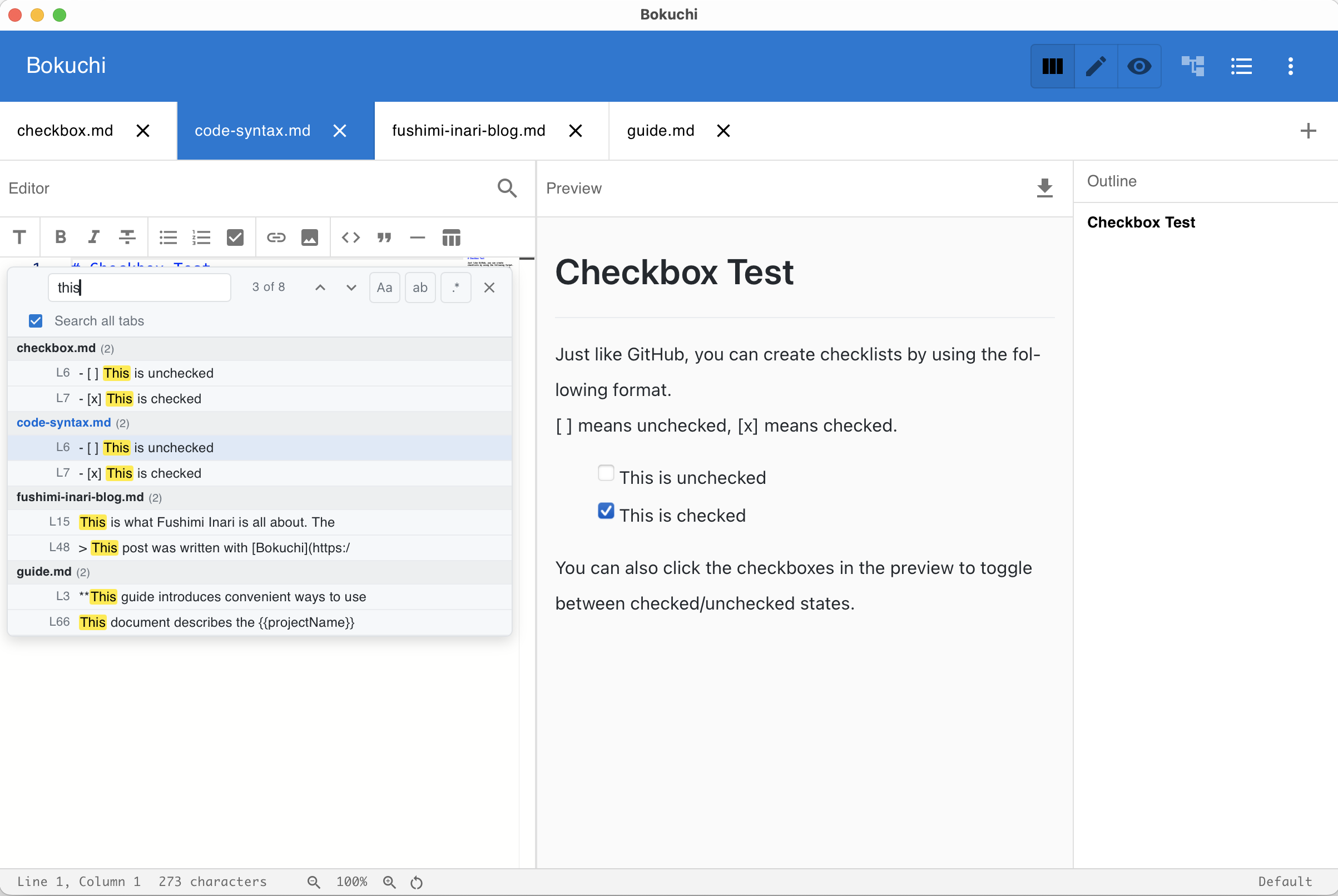
Section titled “Search All Tabs”When you have more than one tab open, a “Search all tabs” checkbox appears in the search panel. Enable it to search across all open files at once.
- Results are grouped by tab name
- Click a result to switch to that tab and jump to the match
- Match navigation (Enter / Shift+Enter) works across tabs
- All search options (case sensitivity, whole word, regex) apply to cross-tab search as well
Next Steps
Section titled “Next Steps”- Editor and preview — Learn more about the editor
- Keyboard shortcuts — Full shortcut reference