
Settings
Open the settings panel with Cmd+, (macOS) or Ctrl+, (Windows/Linux). You can also press F1 and access settings from the help menu.
Settings Categories
Section titled “Settings Categories”Editor
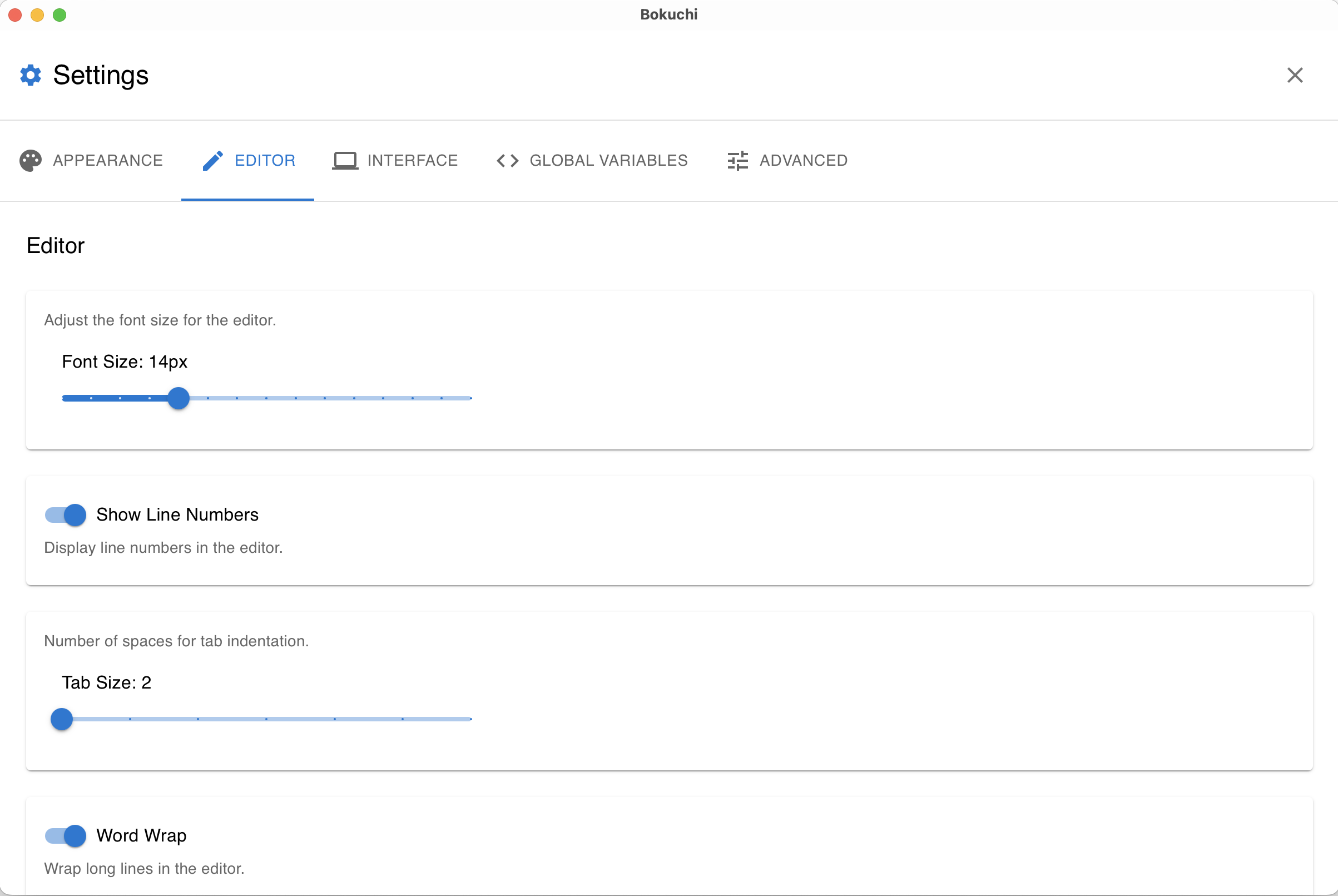
Section titled “Editor”| Setting | Description | Default |
|---|---|---|
| Font size | Editor text size | 14 |
| Line numbers | Show line numbers in the gutter | On |
| Tab size | Number of spaces per tab | 2 |
| Word wrap | Wrap long lines to fit the editor width | On |
| Minimap | Show a minimap overview of the document | On |
Appearance
Section titled “Appearance”| Setting | Description | Default |
|---|---|---|
| Theme | Choose from 5 built-in themes | Default |
See Themes for details on each theme.
Interface
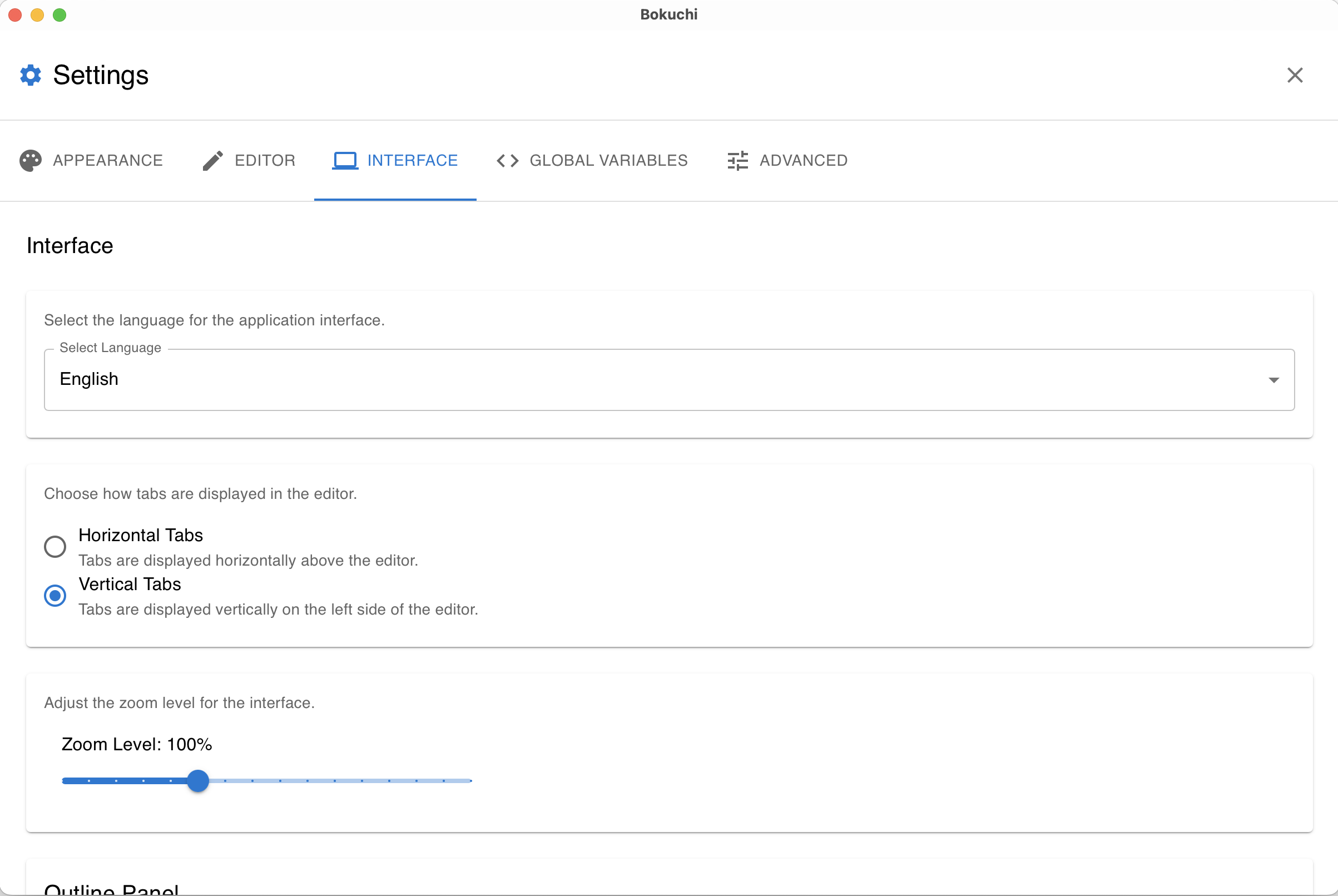
Section titled “Interface”| Setting | Description | Default |
|---|---|---|
| Language | UI language (14 languages available) | English |
| Tab layout | Horizontal or vertical tabs | Horizontal |
| Zoom level | Interface zoom | 100% |
| Outline display mode | Persistent or overlay | Persistent |
| Explorer display mode | Persistent, overlay, or off | Off |
| File filter | Show Markdown files only or all files | Markdown only |
Advanced
Section titled “Advanced”| Setting | Description | Default |
|---|---|---|
| Auto save | Save files automatically after 3 seconds of inactivity | On |
| Show whitespace | Display invisible characters | Off |
| Table conversion | How to handle pasted table data: auto, confirm, or off | Confirm |
Rendering Extensions
Section titled “Rendering Extensions”| Setting | Description | Default |
|---|---|---|
| KaTeX (Math Expressions) | Render math using $...$ (inline) and $$...$$ (display) syntax | On |
| Mermaid (Diagrams) | Render diagrams from ```mermaid fenced code blocks | Off |
Disabled features do not load their libraries, keeping the editor lightweight.
Global Variables
Section titled “Global Variables”Manage your global variables — add, edit, delete, import, and export.
Export and Import Settings
Section titled “Export and Import Settings”You can export all your settings as a JSON file and import them on another machine. This is useful for backing up your configuration or sharing it.
- Export: Click the Export button in the settings panel
- Import: Click the Import button and select a previously exported JSON file
Reset Settings
Section titled “Reset Settings”If you want to start fresh, use the Reset button to restore all settings to their defaults.
Next Steps
Section titled “Next Steps”- Themes — Preview all 5 themes
- Variables — Set up reusable text variables
- Keyboard shortcuts — Full shortcut reference