
Table Conversion
Bokuchi can automatically convert table data from other formats into Markdown table syntax when you paste it.
What Gets Converted
Section titled “What Gets Converted”- HTML tables — Copy a table from a web page or spreadsheet and paste it into Bokuchi
- TSV data — Tab-separated values (e.g., from Excel or Google Sheets)
- CSV data — Comma-separated values
Conversion Modes
Section titled “Conversion Modes”You can choose how Bokuchi handles table data on paste:
| Mode | Behavior |
|---|---|
| Auto | Converts automatically without asking |
| Confirm (default) | Shows a preview dialog so you can review before converting |
| Off | Pastes as plain text, no conversion |
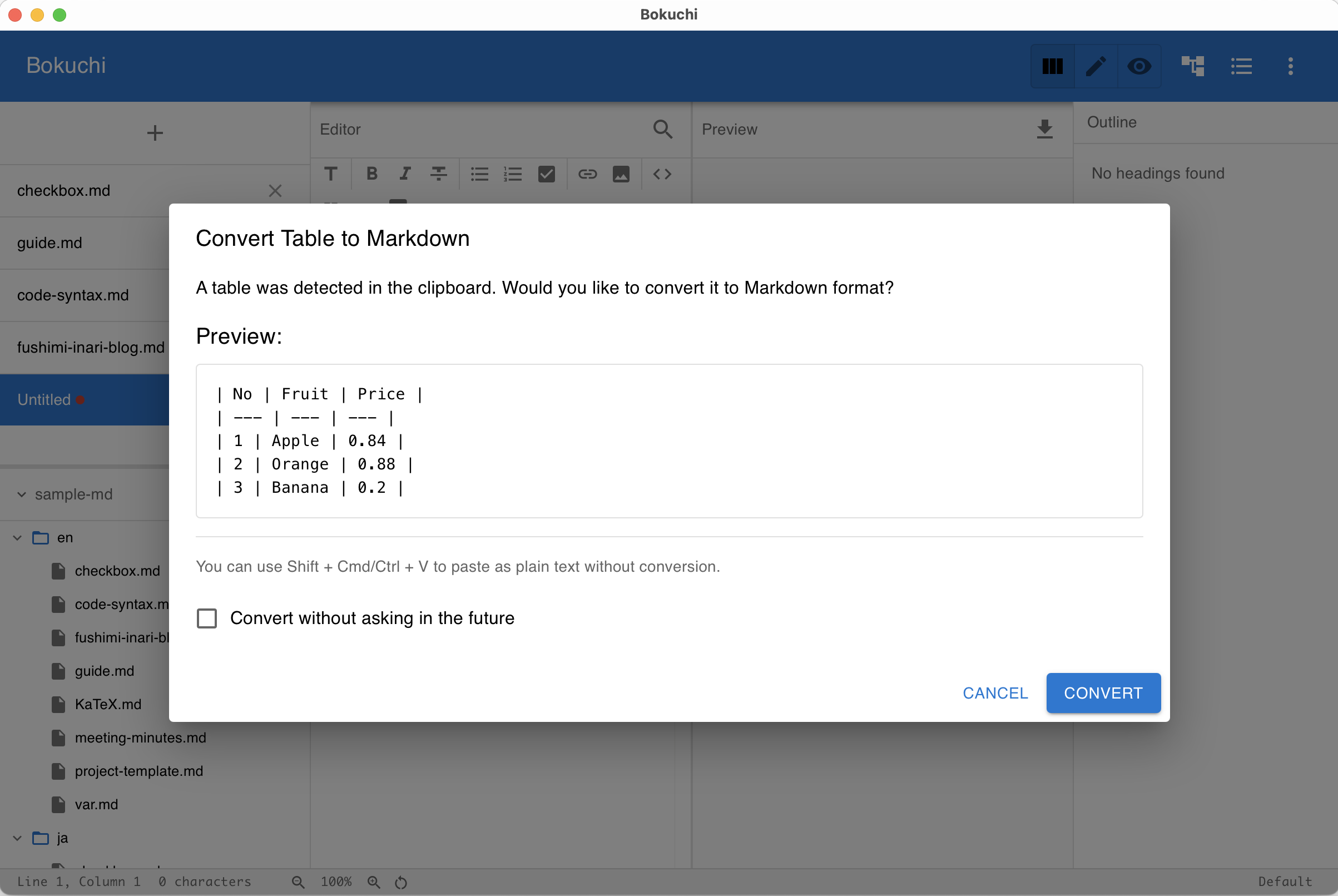
Change the mode in Settings > Advanced > Table Conversion.
Bypassing Conversion
Section titled “Bypassing Conversion”If you want to paste table data as plain text without conversion (regardless of the mode setting), use:
- macOS: Shift+Cmd+V
- Windows/Linux: Shift+Ctrl+V
Examples
Section titled “Examples”HTML Tables
Section titled “HTML Tables”When you copy a table from a web page or spreadsheet and paste it, Bokuchi converts it to a Markdown table. Try selecting the table below, copying it, and pasting it into Bokuchi:
Sample to copy
| Name | Age |
|---|---|
| Alice | 30 |
| Bob | 25 |
Result:
| Name | Age || --- | --- || Alice | 30 || Bob | 25 |CSV Data
Section titled “CSV Data”Try copying the comma-separated data below and pasting it into Bokuchi:
Name,Age,CityAlice,30,TokyoBob,25,OsakaResult:
| Name | Age | City || --- | --- | --- || Alice | 30 | Tokyo || Bob | 25 | Osaka |TSV Data
Section titled “TSV Data”When you copy from Excel or Google Sheets, data is pasted in tab-separated (TSV) format. TSV data is also converted to Markdown tables.
Next Steps
Section titled “Next Steps”- Markdown basics — Tables — Learn how to write Markdown tables manually
- Settings — Configure the conversion mode