
Tabs
Bokuchi supports multi-tab editing, allowing you to work with multiple files at the same time.
Basics
Section titled “Basics”- Each open file has its own tab at the top of the window
- Click a tab to switch to that file
- The active tab is highlighted
Tab Navigation
Section titled “Tab Navigation”| Action | Shortcut |
|---|---|
| Next tab | Ctrl+Tab |
| Previous tab | Ctrl+Shift+Tab |
Reordering Tabs
Section titled “Reordering Tabs”Drag and drop tabs to rearrange their order.
Unsaved Changes Indicator
Section titled “Unsaved Changes Indicator”A tab with unsaved changes shows a badge or dot indicator. When you try to close a tab with unsaved changes, Bokuchi will ask if you want to save first.
Tab Layout
Section titled “Tab Layout”Bokuchi offers two tab layouts:
- Horizontal (default) — Tabs appear in a row at the top
- Vertical — Tabs appear in a column on the left side
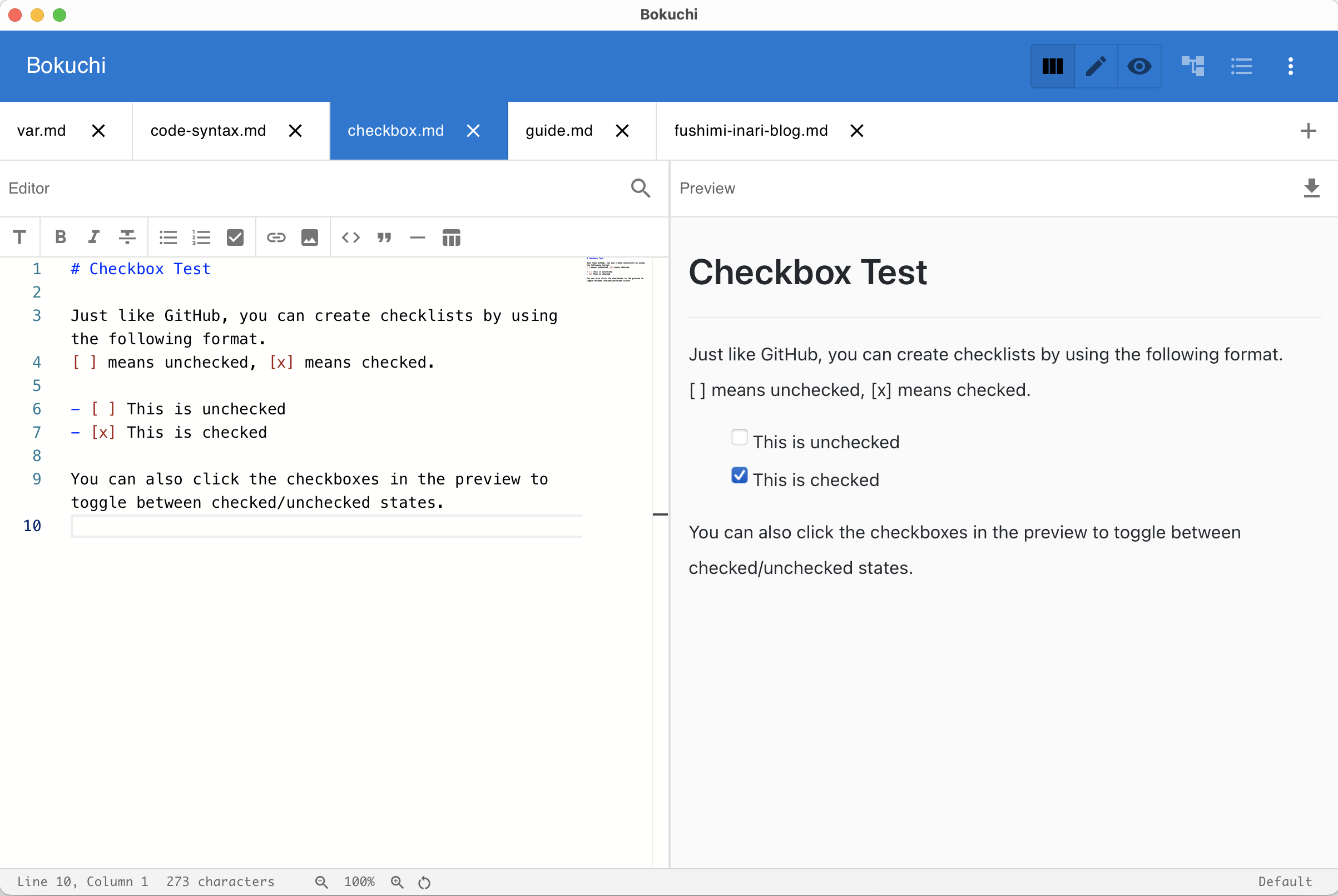
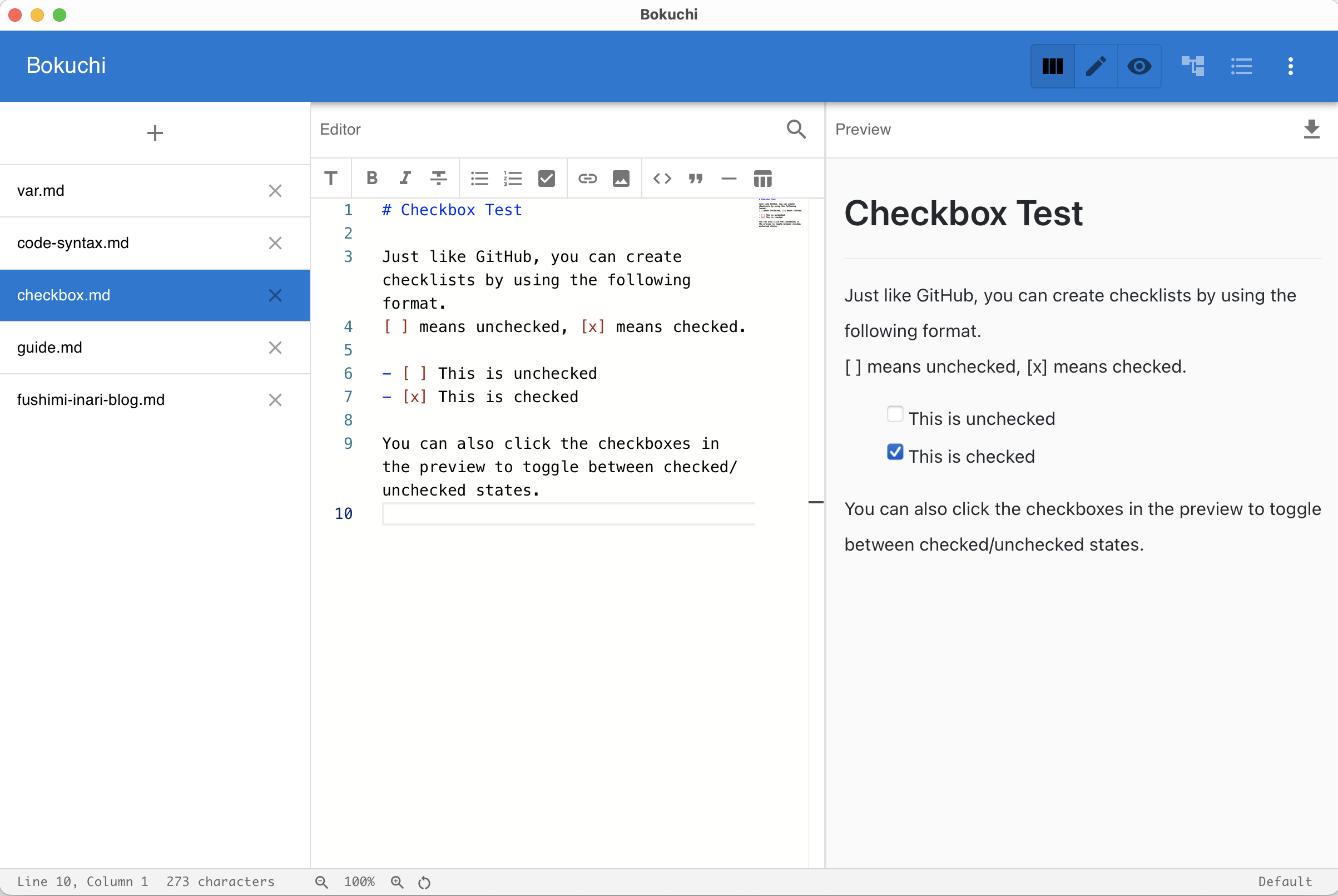
Switch between layouts in Settings > Interface > Tab Layout.
Session Persistence
Section titled “Session Persistence”All open tabs are saved when you close Bokuchi and restored when you reopen it, including the content of each tab and which tab was active.
Next Steps
Section titled “Next Steps”- Editor and preview — Learn about view modes
- Folder tree — Browse and open files from a directory