
Variables
Variables let you define a value once and use it in multiple places. When the document is rendered, the variable placeholder is replaced with the actual value.
This is a feature unique to Bokuchi — it’s especially useful for templates, reports, and documents where the same information (like a project name, date, or author) appears in several places.
How Variables Work
Section titled “How Variables Work”Write {{variableName}} anywhere in your document. In the preview, it will be replaced with the value you defined.
Quick Example
Section titled “Quick Example”If you define a variable author with the value Alice, then:
Written by {{author}}will display as:
Written by Alice
Global Variables
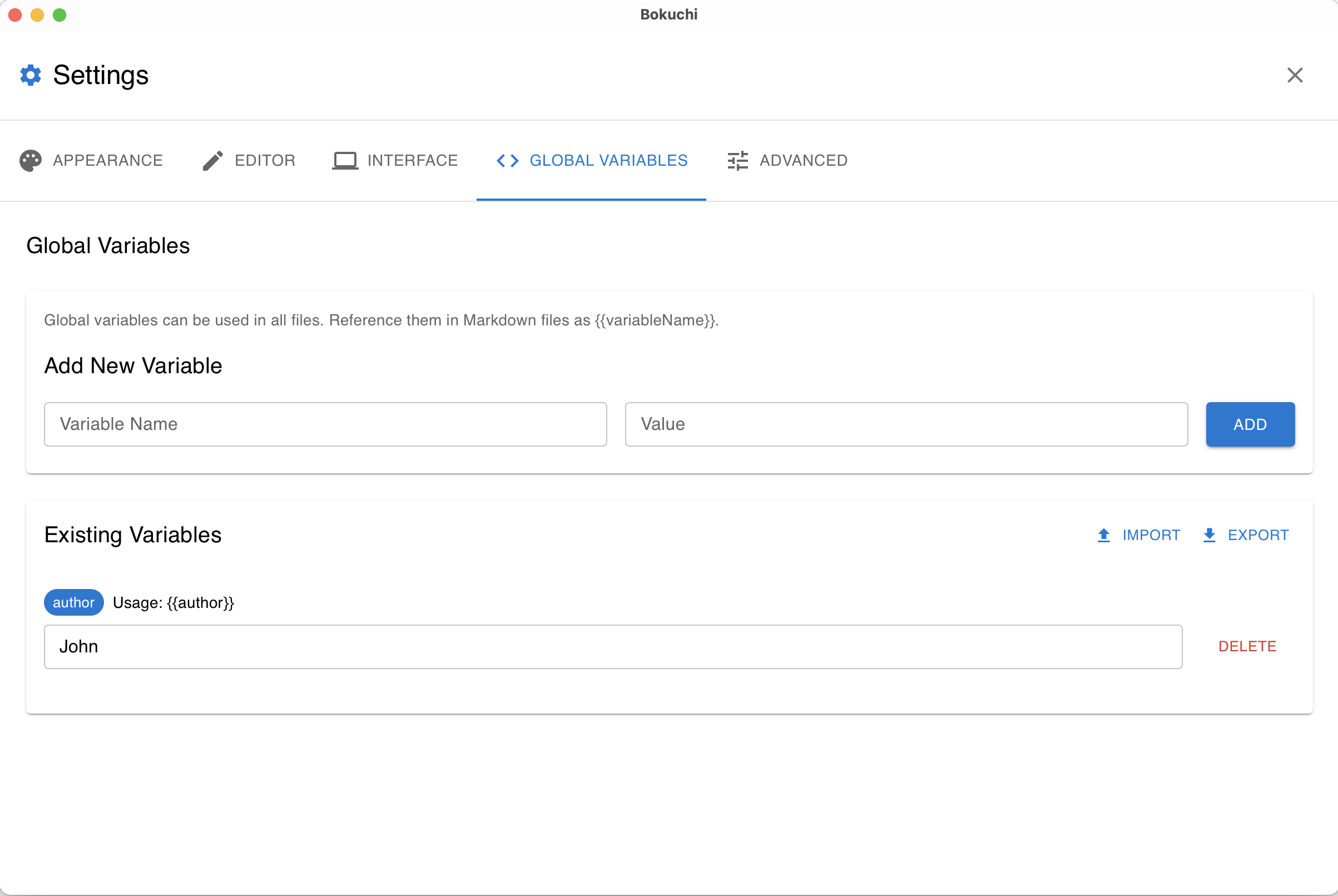
Section titled “Global Variables”Global variables are available in all files. They are managed in the settings panel.
- Open Settings (Cmd+, on macOS / Ctrl+, on Windows/Linux)
- Go to the Global Variables tab
- Add a variable name and value, then click Add
Use Cases
Section titled “Use Cases”- Company name, department name
- Author name
- Common URLs or paths
File-Local Variables
Section titled “File-Local Variables”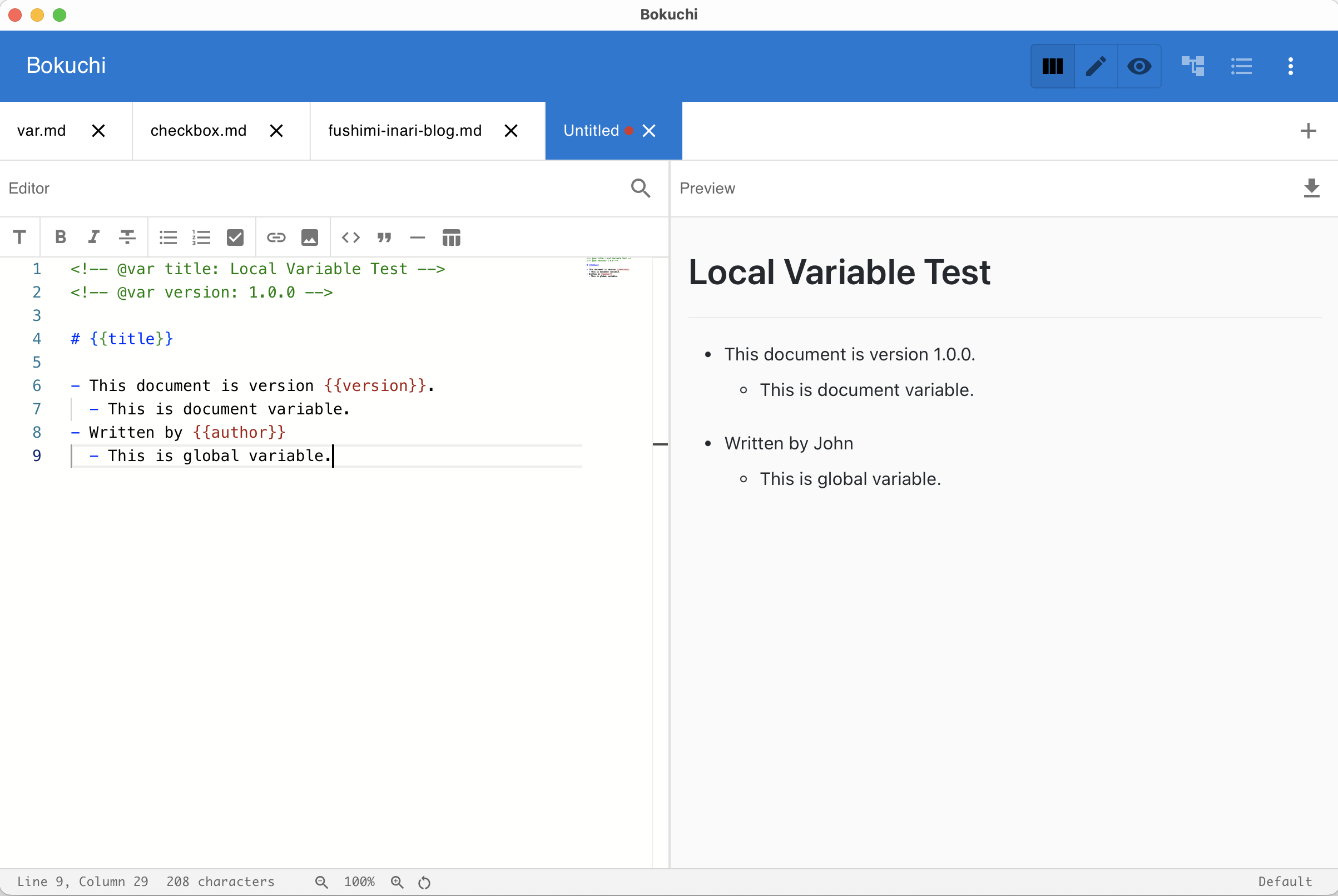
You can define variables that apply only to the current file using an HTML comment at the top of the file:
<!-- @var title: Monthly Report --><!-- @var date: 2026-03-01 --><!-- @var author: Alice -->
# {{title}}
Date: {{date}}Author: {{author}}
Syntax
Section titled “Syntax”<!-- @var variableName: value -->Priority Order
Section titled “Priority Order”When the same variable name is defined both locally and globally:
- File-local variable — used first
- Global variable — used if no local definition exists
- Undefined — the
{{variableName}}text is displayed as-is
Export and Import
Section titled “Export and Import”You can export all global variables to a YAML file and import them on another machine or share them with your team.
- Export: Settings > Global Variables > Export
- Import: Settings > Global Variables > Import
Saving with Variables Expanded
Section titled “Saving with Variables Expanded”Bokuchi can save a copy of your document with all variables replaced by their actual values. This is useful when you need to share a finalized version.